A tour of the app
Lazy Reader has five main places: Feed, Books, Artifacts, Resources and Settings. A sixth, Archive, holds everything you have cleared. This page shows where each one is and what it is for, first on a phone, then on a computer.
On a phone
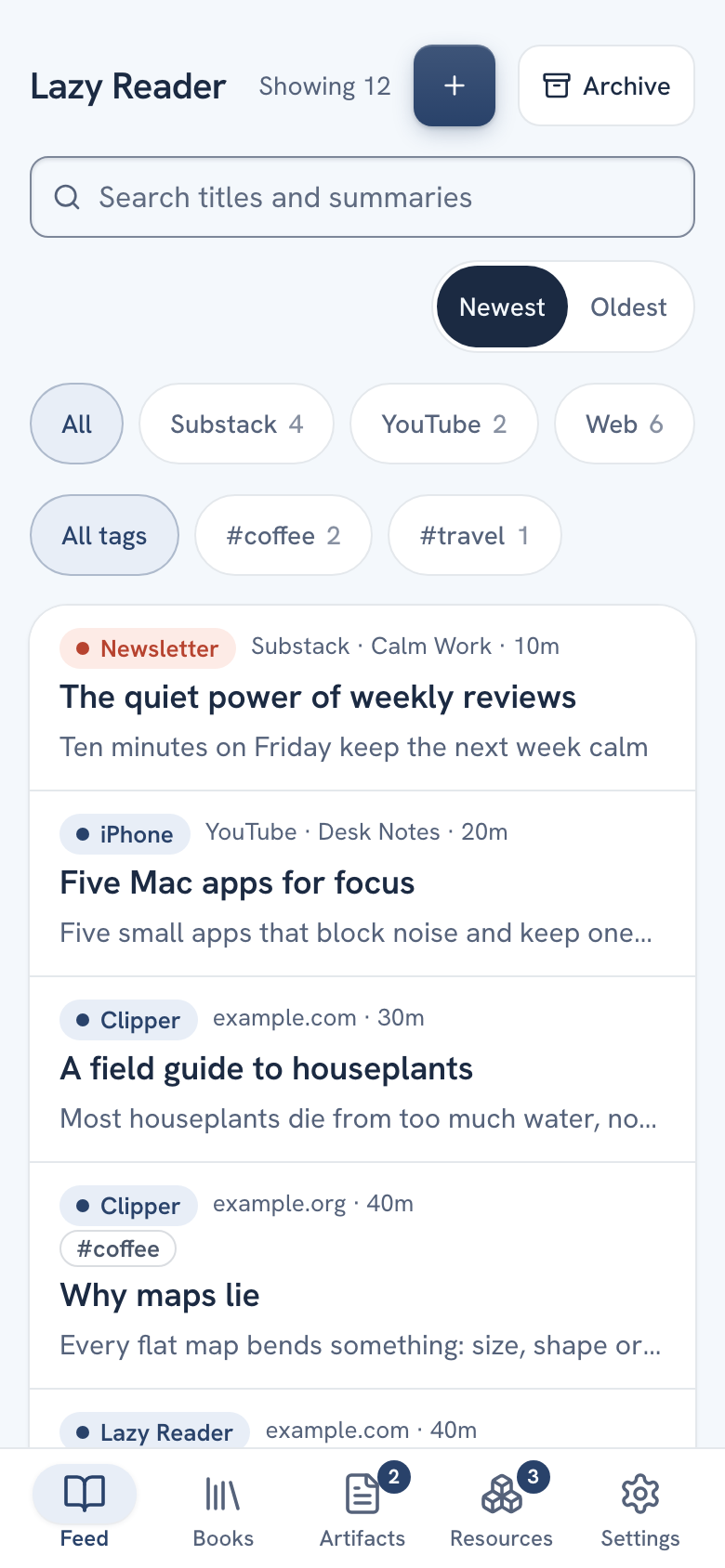
At the bottom of the screen is the tab bar with five tabs: Feed, Books, Artifacts, Resources and Settings. Tap a tab to go there. Tap the tab you are already on to jump back to the top.
Two tabs can carry a small number:
- Artifacts shows how many documents you have not opened yet.
- Resources shows how many resources are waiting for you to review.
When you open an item, it fills the screen and the tab bar steps aside. The item has its own bar at the bottom with Worth it and Archive. Use the back link at the top to return.
On a computer
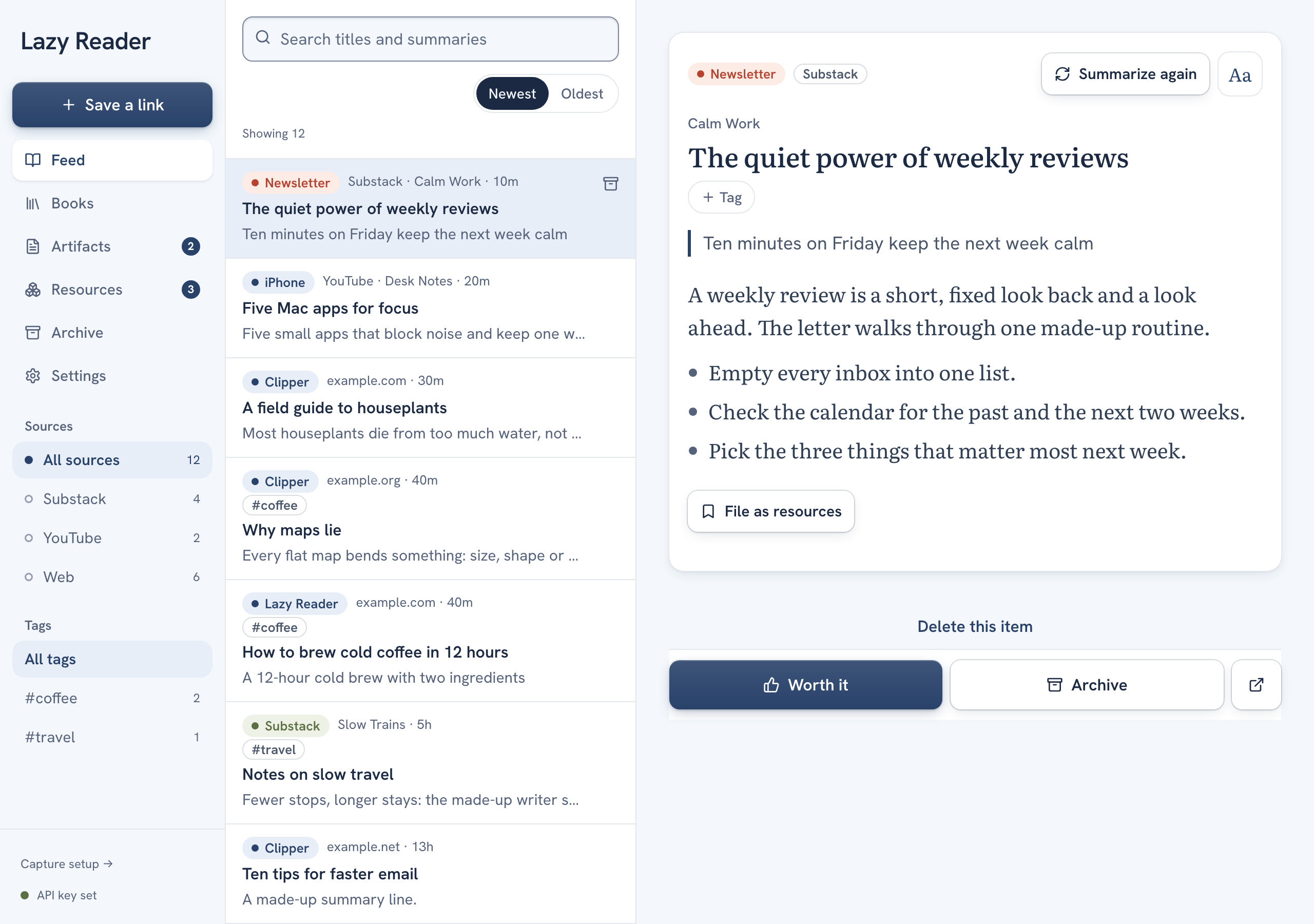
On a computer the tab bar becomes a sidebar on the left. From top to bottom it has:
- The name Lazy Reader. Click it to go back to the feed.
- Save a link, a button that opens the box to paste an address.
- Feed, Books, Artifacts, Resources, Archive and Settings.
- Sources: where your saves come from, such as Substack, YouTube or Web, each with a count. Click one to see only those saves. It shows once you have saves.
- Tags: your own tags with their counts. It shows once you have tagged a save.
- At the bottom, Capture setup →, which opens Settings on the Capture group, and a dot that says API key set (green) or No API key (amber).
In a wide window, Feed, Books, Artifacts and Resources split in two: the list on the left, the open item on the right. In a narrower window you see one column and an item opens on its own page.
Feed
The feed is the list of everything you saved and have not cleared yet, newest first. Each row shows where the item came from, its title and a line from its summary. Above the list are a search field ("Search titles and summaries") and a Newest / Oldest switch. On a phone, a row of chips under them filters by source.
Open an item to read its summary. When you are done, press Worth it or Archive to take it out of the feed. See The feed.
Books
Books is where you add an EPUB or a text PDF you own and get a reading guide for it. At the top is Add a book. Under it, In progress lists books still being summarized and Library lists finished ones. See Books and reading guides.
Artifacts
Artifacts holds documents Claude makes for you and sends to Lazy Reader, such as a daily news digest or a report. Recurring has one card per series. One-off lists single documents. It is empty until you connect Claude. See Artifacts.
Resources
Resources is where you keep tools, repos, prompts, skills and other things you want to use again, each with a type and a status: To try, Using or Dropped. New adds one by hand. New resources from an article wait in Review first. On a phone, a To review card at the top opens it. On a computer, use the Review tab next to All. See Resources and Review.
Archive
Archive lists everything you took out of the feed, in groups: Worth it and Archived. Chips at the top filter it: All, Saves, Books, Artifacts. Each row has Unarchive to bring it back.
- On a phone, tap the Archive button at the top right of Feed, Books or Artifacts. It opens Archive already filtered to that tab.
- On a computer, click Archive in the sidebar.
See Worth it and Archive.
Settings
Settings is split into groups: Setup (only while a step is left), Reading taste, Capture, Notifications, AI model, Usage, Appearance, Your copy and Account.
- On a phone, Settings is a list. Each row shows its current value, such as your model or "Lazy Reader · Auto". Tap a row to open it.
- On a computer, the groups are listed on the left and the open group fills the rest. A group that needs you has an amber dot.
Every setting explains each field.
Next
- Getting started if you have not saved a link yet.
- Ways to save to pick how you save from where you read.