
Add a resource by hand
Sometimes you already know the thing you want to keep: a tool a friend told you about, a GitHub repo, a prompt you wrote yourself. You do not need an article for that. You can add it straight to the Resources tab with the New button.
A resource you add by hand skips Review. You pick the type yourself, so there is nothing for Claude to check. It goes straight into your list with the status To try.
You need an OpenRouter key in Settings. After you save, Lazy Reader reads the page or the text and writes a short What it does line for you. That uses one model call on your key.
Step 1: open the New resource page
- On a computer, click Resources in the left sidebar. At the top of the page, next to the title, click New.
- On a phone, tap the Resources tab at the bottom of the screen. Tap the New button at the top right, next to the title.
The New resource page opens. At the top is a row of type buttons, one for each of your types: Tool, Repo, Prompt, Skill, Reference, Book and Bookmark, plus any types you made. The first one is already picked.
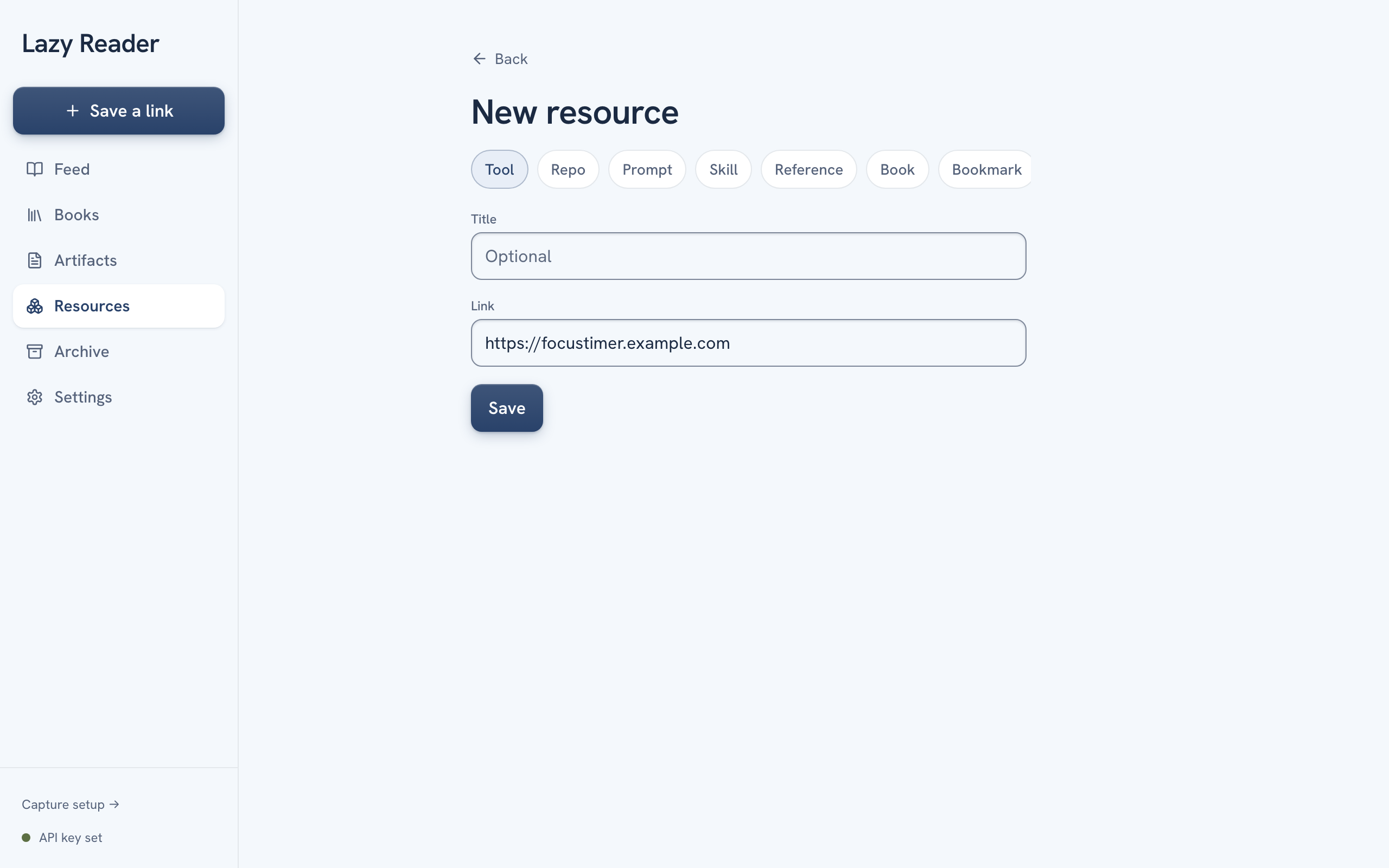
Step 2: pick a type
Click the type that fits. The form below changes with it:
| Type | What the form asks for |
|---|---|
| A type that starts with a link (Tool, Repo, Reference, Bookmark) | Title and Link |
| A type that starts with text (Prompt, Skill) | Title and Text |
| Book | Title, Author, Link and Why |
Types you made yourself follow the setting you chose for them: "Starts with a link" or "Starts with text". See Edit resource types.
INFO
The Book type here is a note about a book you want to remember, with no file. To get a summary of a book you own, use the Books tab instead. See Add a book.
Step 3: fill in the fields
- Title: optional for every type except Book. If you leave it empty for a link, Lazy Reader uses the page's own title.
- Link: paste the address. It must start with
http://orhttps://. - Text: for a prompt or a skill, paste the whole text into the big box that says "Paste it here". You can leave the link out.
- For a Book, Why is a short note on why you want to read it. It shows later under Reach for it when.
Step 4: save
Click Save under the form. The button says Saving… while Lazy Reader reads the page. This can take a few seconds.
When it is done, a message at the bottom says Saved and the new resource opens. You see:
- The type at the top. You can still change it from the box.
- The title, with the link under it.
- The status switch, set to To try.
- What it does, written from the page.
- Reach for it when, a hint about when to use it.
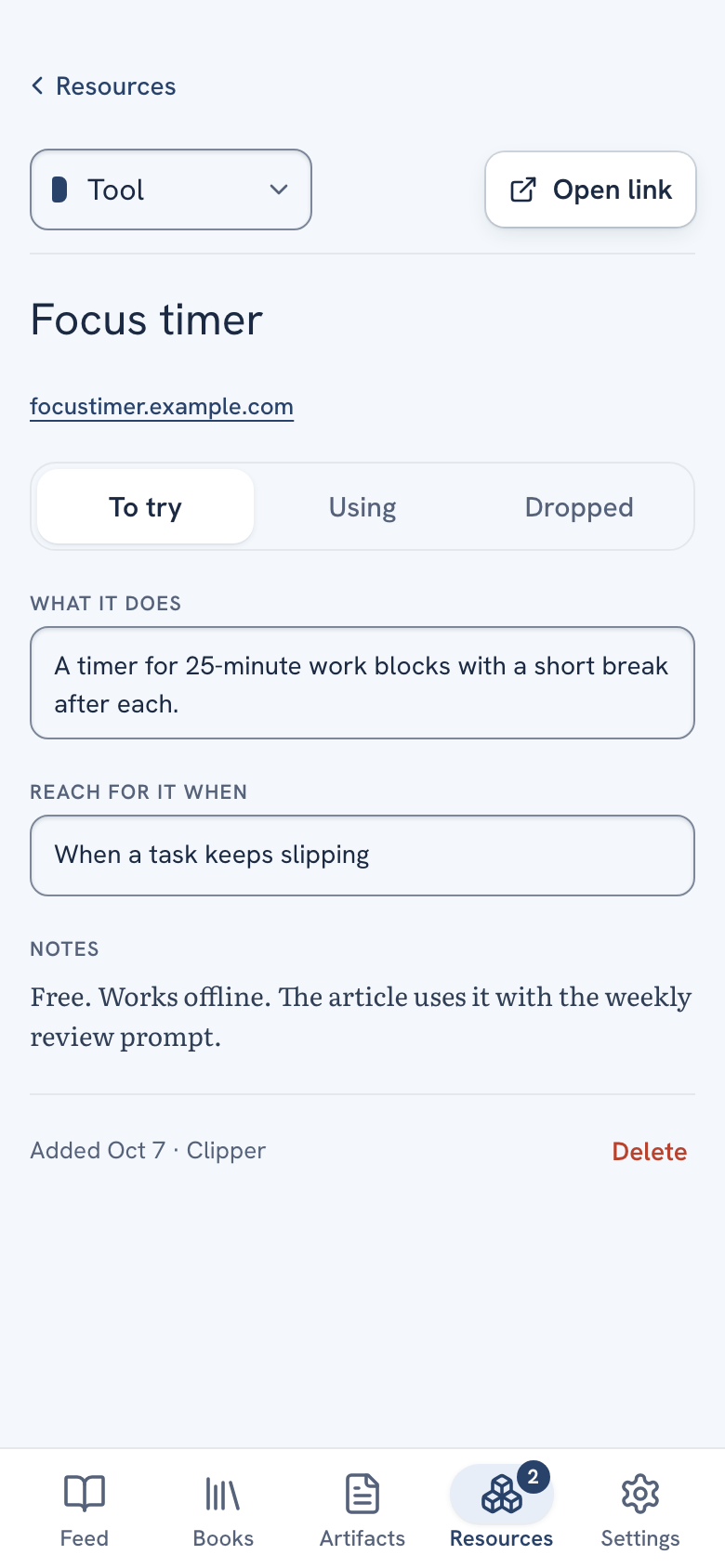
Click into What it does or Reach for it when to change the words. Your change is saved when you click outside the box.
What the messages mean
| Message | What it means and what to do |
|---|---|
| "Pick a type first." | No type is picked. Click one of the type buttons. |
| "Give it a link." | The type starts with a link and the Link field is empty. |
| "Paste the text." | The type starts with text and the Text box is empty. |
| "Give it a title." | You picked Book and left the Title empty. |
| "Already in Resources" | That link is already a resource. Lazy Reader opens the one you have instead of making a second. If you dropped it, the message says when. |
| "Filed" | The link was already in your feed. Lazy Reader turned that feed item into a resource instead of saving it twice. |
| "You have no types yet. Add one in Edit types first." | Every type was deleted. Add one, then come back. |
If the description does not appear
If Lazy Reader could not read the page, the resource opens with a red line such as "Couldn't describe this yet." and a Try again button. If it is still working after a few minutes, it says "This is taking a while." with the same button. Click Try again. If the line says your OpenRouter key is missing, add it in Settings, AI model, then try again.
TIP
Claude can add resources for you too. Ask it to save a tool or a prompt to your Lazy Reader. If Claude names the type, the resource goes straight to your list. If it does not, the resource waits in Review like anything filed from an article. See Use Claude with your library.
When to use this instead of filing an article
- Use New when you have one thing and you know what it is.
- Use File as resources on a saved article when the article names many things and you want Lazy Reader to find them. See File resources and review them.
Related pages: Resources, Manage your resources, Edit resource types.