
Read a summary
Every link you save turns into an item with a summary: a short version of the article that you can read in a minute or two. If the summary makes you want more, the whole article is one click away, inside Lazy Reader or on the original site.
This page shows how to open an item, what is on the item screen, how to read the full text, and how to make the text bigger or change the font.
Step 1: open an item
Go to the Feed. Each row shows where the item came from, its title and the first line of the summary. Click or tap a row.
What happens next depends on your screen:
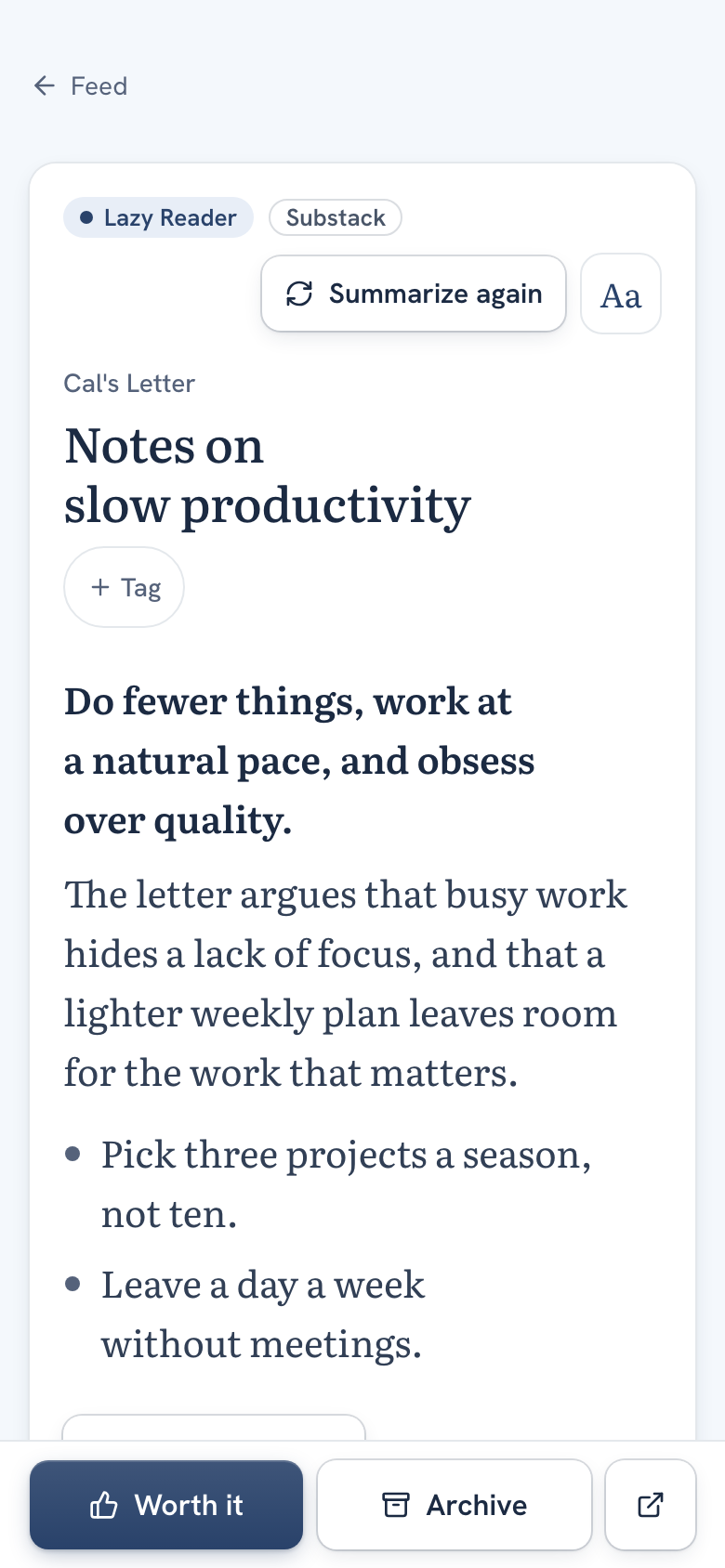
- On a phone, the item fills the screen. The tab bar at the bottom steps aside and a bar with buttons takes its place. To go back to the feed, tap Back at the top left.
- On a computer with a narrow window, the item opens as its own page, with Back at the top.
- On a computer with a wide window (about 1100 pixels or wider), the feed stays on the left and the item opens on the right. When you open the Feed, the first item is already showing.
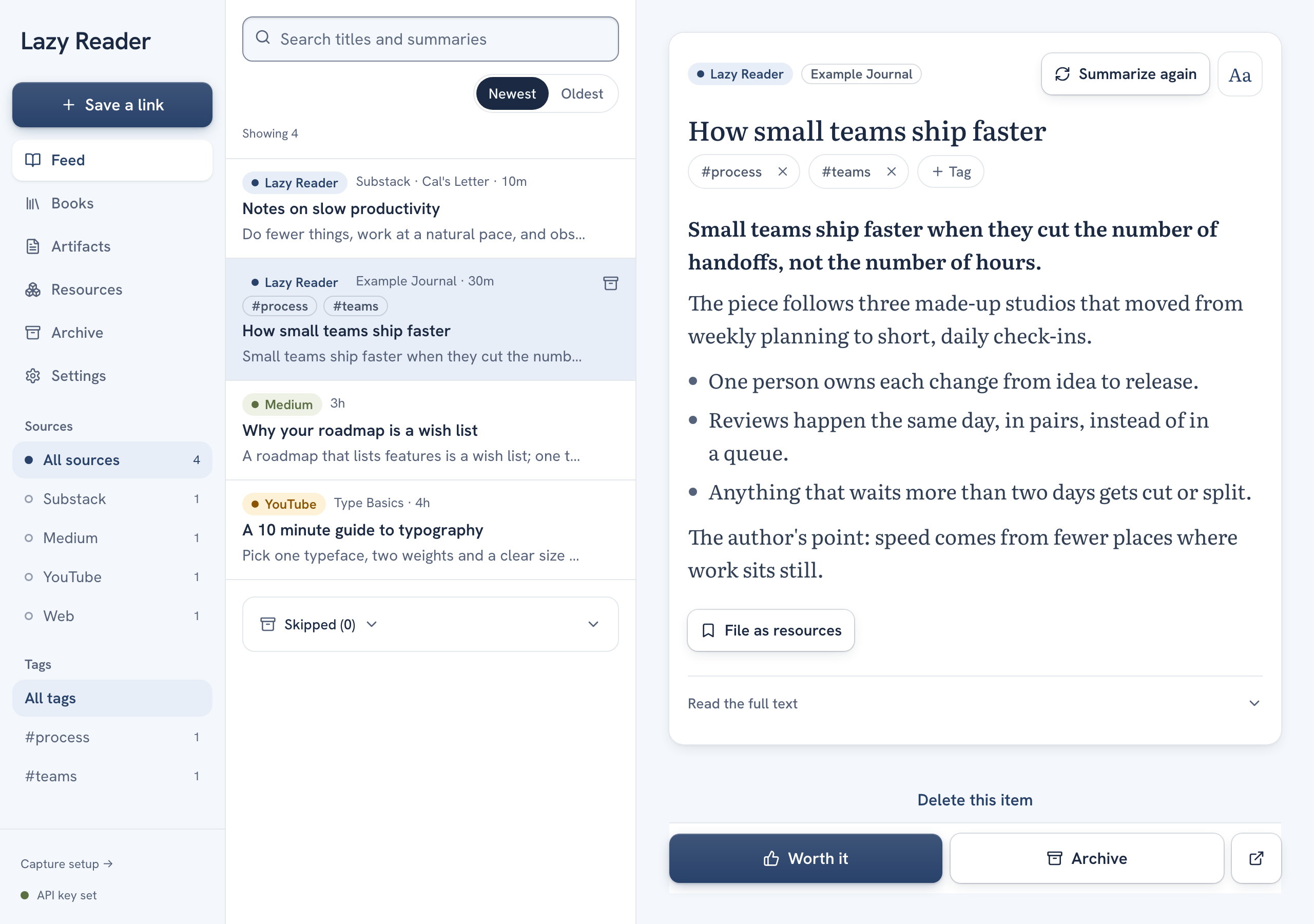
Keys on a wide screen
With the list on the left and the item on the right, press j or the down arrow for the next item and k or the up arrow for the one before. Press e to archive the open item and / to jump to the search field.
Step 2: read the item screen
From top to bottom, the item screen shows:
- A row of labels and buttons. First a small label for where the item came from, such as Lazy Reader, iPhone, Clipper, Newsletter or Medium. Next to it, the site it is from. On the right, the Aa button for the reading text and, for links you saved yourself, Summarize again.
- The publisher, when there is one, in small grey letters.
- The title.
- Your tags and a Tag button to add one. See Tag items.
- The summary. It starts with the answer and keeps the numbers from the article. How-to articles come out as steps and lists stay lists. Links in the summary open in a new tab.
- File as resources, a button that pulls the tools, prompts and skills out of the article. See File resources and review them.
- Read the full text, a closed section with the whole article.
- Delete this item, a quiet link at the very bottom.
At the bottom of the screen there is a bar that stays in place while you scroll. It has Worth it, Archive and a small square button with an arrow, Open original, which opens the article on its own site in a new tab. What Worth it and Archive do is in Clear your feed.
iPhone style
If you picked the iPhone style look in Settings, the bottom bar is a toolbar with icons over small words: Worth it, Archive, Open, Share (where your device can share) and Delete. Delete then sits there instead of at the bottom of the page.
Step 3: read the full text
Under the summary, click Read the full text. The section opens and shows the article as Lazy Reader saved it, under a small heading Full text that stays at the top of the screen while you scroll. Click Read the full text again to close it.
If the section is missing, Lazy Reader has no saved text for this item. Use Open original instead.
Step 4: change the text size and font
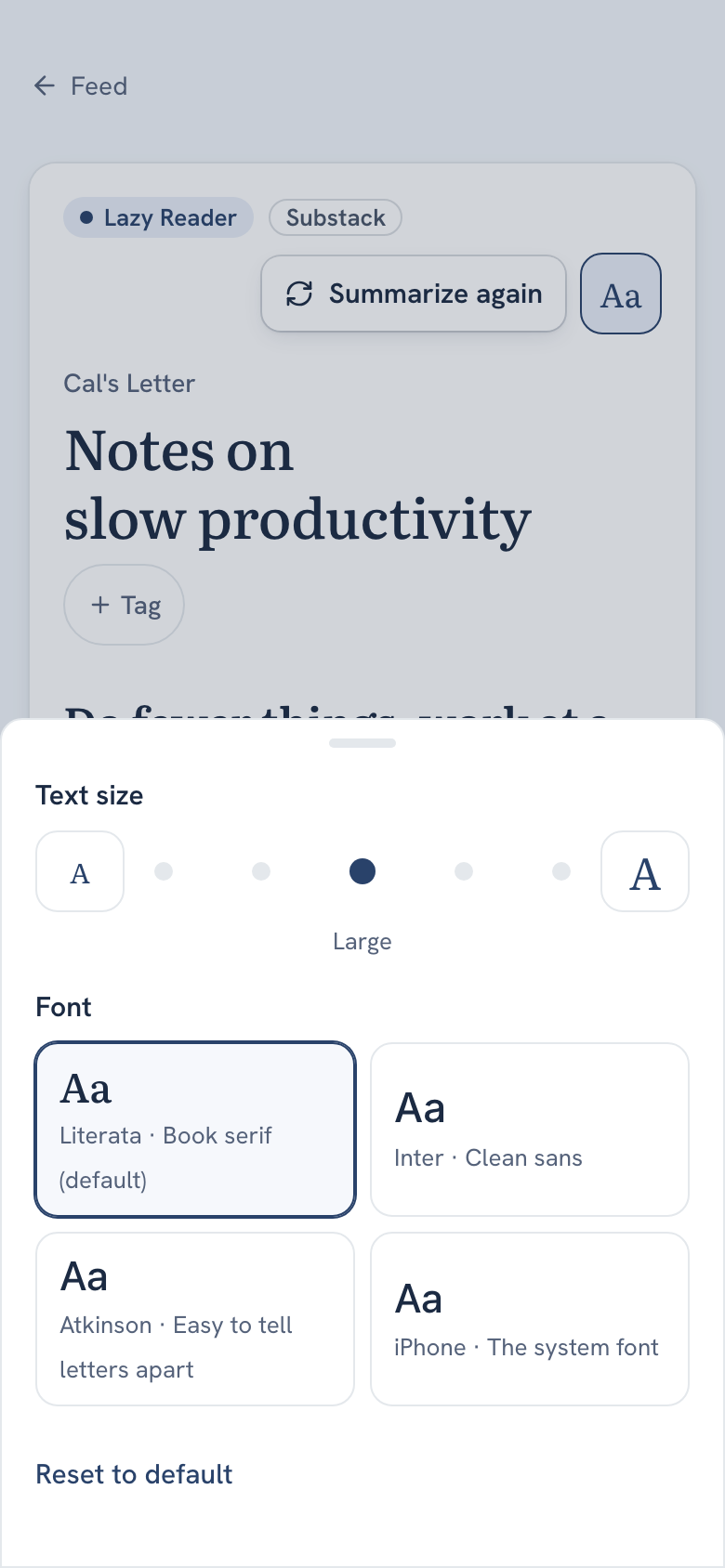
- Click the Aa button at the top right of the item.
- On a phone a sheet slides up from the bottom.
- On a computer a small panel opens under the button.
- Under Text size, press the small A to make the text smaller or the big A to make it bigger. There are five steps: Small, Default, Large, Larger and Largest. The name of the step shows under the dots.
- Under Font, pick one of four:
- Literata, a book serif. The default in the Lazy Reader look.
- Inter, a clean sans.
- Atkinson, made so letters are easy to tell apart.
- iPhone, the system font. The default in the iPhone style look.
- Close the sheet by tapping outside it or pressing Esc.
The change applies at once to summaries and full text. It is saved to your account, so your other devices use it too. To go back, open Aa and press Reset to default. The same controls are in Settings, Appearance, under Reading text.
Summarize again
If a summary missed the point, press Summarize again at the top of the item. Lazy Reader asks "Replace this summary with a new one?" and adds "The current one stays until the new one is ready." Press Summarize again to confirm or Cancel to keep it. Writing the new summary is another model call on your OpenRouter key.
The button only shows on links you saved yourself that already have a summary.
When there is no summary yet
Instead of a summary, the item may show a card:
- Writing your summary, "A minute or so…": wait.
- This is taking a while: press Try again.
- A card about your key, the full text or a page that could not be opened: it says what to do. See Item status labels and A save has no summary.
Related pages: Summaries, Shape your summaries, Change model, notifications and look.