
Add a book
Lazy Reader can turn a book you own into a reading guide: a summary of every chapter, a plan that says which chapters to read in full, and a map of the whole book. This page shows how to add the book. To read the guide once it is ready, see Read a book guide.
You need:
- The book as an EPUB file or a text PDF. A text PDF is one where you can select the words. A scanned PDF is only pictures of pages and does not work.
- An OpenRouter key in Settings. A book is summarized with your own key, at least one model call per chapter (long chapters take a few) and one for the whole book.
INFO
Lazy Reader reads the file on your device. The file itself is never uploaded. Only the text of the chapters you pick is sent, and only when you press the button at the end. Only add books you own.
Step 1: open Add a book
- On a computer, click Books in the left sidebar. At the top of the list, click Add a book.
- On a phone, tap the Books tab at the bottom of the screen, then tap Add a book.
The Add a book page opens with one button: Pick an EPUB or a text PDF.
TIP
On an iPhone with the Lazy Reader app, you can also share an EPUB or PDF from Files, Books or Mail to Lazy Reader. The app opens on this page with the book already loaded. See Save from your iPhone.
Step 2: pick the file
- Click Pick an EPUB or a text PDF. Your computer or phone asks you to choose a file.
- Choose the book.
- You see "Reading the book on this device" for a moment. Big books take longer.
If the file does not work, a red message says why:
| Message | What to do |
|---|---|
| "This book is copy-protected (DRM)…" | Lazy Reader can only read books without DRM. Use a copy without protection. |
| "This PDF is scanned images with no text…" | Use a text PDF or an EPUB. |
| "Lazy Reader reads EPUB and PDF. Convert this book to EPUB with Calibre first." | The file is another format, such as MOBI. Convert it, then pick it again. |
| "This book has fewer than 1,000 words of text." | The file is too short to be a book. |
| "This book has more than 300,000 words, which is over the limit." | The book is too long. |
| "This file is over 100 MB." | The file is too big. |
For every limit, see Limits and shortcuts.
Step 3: check the title and chapters
When the file is read, the page fills in.
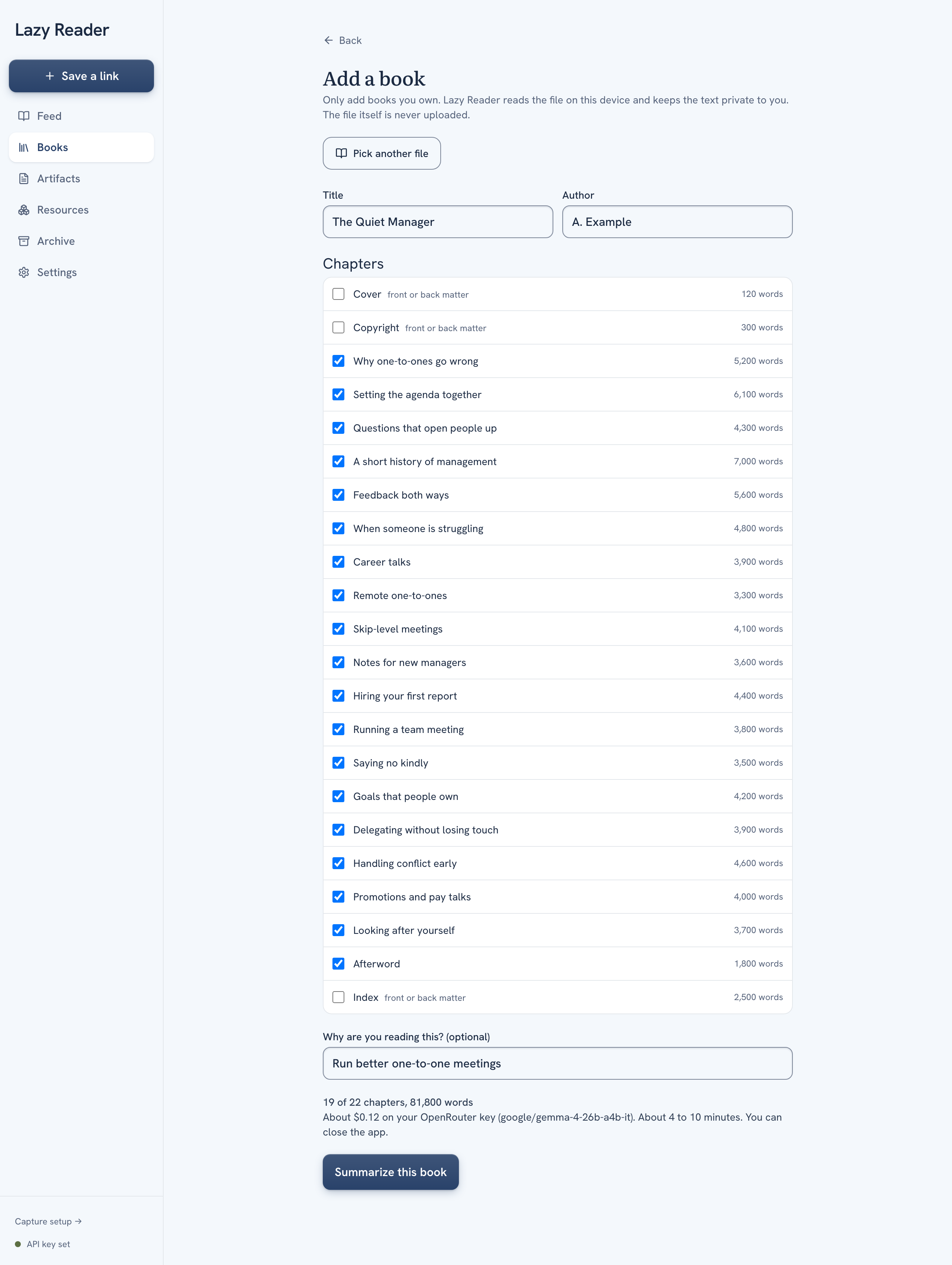
- Title and Author come from the file. Fix them if they look wrong. The title cannot be empty.
- Under Chapters, every chapter has a tick box and its number of words. A tick means "summarize this chapter".
- Chapters marked "front or back matter", such as a copyright page or an index, start without a tick.
- Untick any chapter you do not care about. You pay less and the guide is ready sooner.
- Parts of the book show as small headings above their chapters.
- You may see a note above the list:
- "… words before the first chapter are left out." The text before chapter one is not summarized.
- "This file has no chapters of its own, so Lazy Reader cut it into blocks of about 8,000 words."
To start again with another file, click Pick another file at the top.
Step 4: say why you are reading it
The field Why are you reading this? (optional) tells Lazy Reader what you want from the book. For example: "I want to run better one-to-one meetings with my team." The plan and the chapter advice are written against this goal.
Leave it empty to use your interests from Settings, Reading taste, What I care about.
Step 5: check the cost and start
Under the field, Lazy Reader shows what it will do before anything starts:
- A count, for example "18 of 22 chapters, 74,300 words".
- A cost and time line, for example "About $0.12 on your OpenRouter key (google/gemma-4-26b-a4b-it). About 10 to 15 minutes. You can close the app." If the price of your model is not known, it says so and gives the number of tokens instead.
Then:
- Click Summarize this book. The button says Starting….
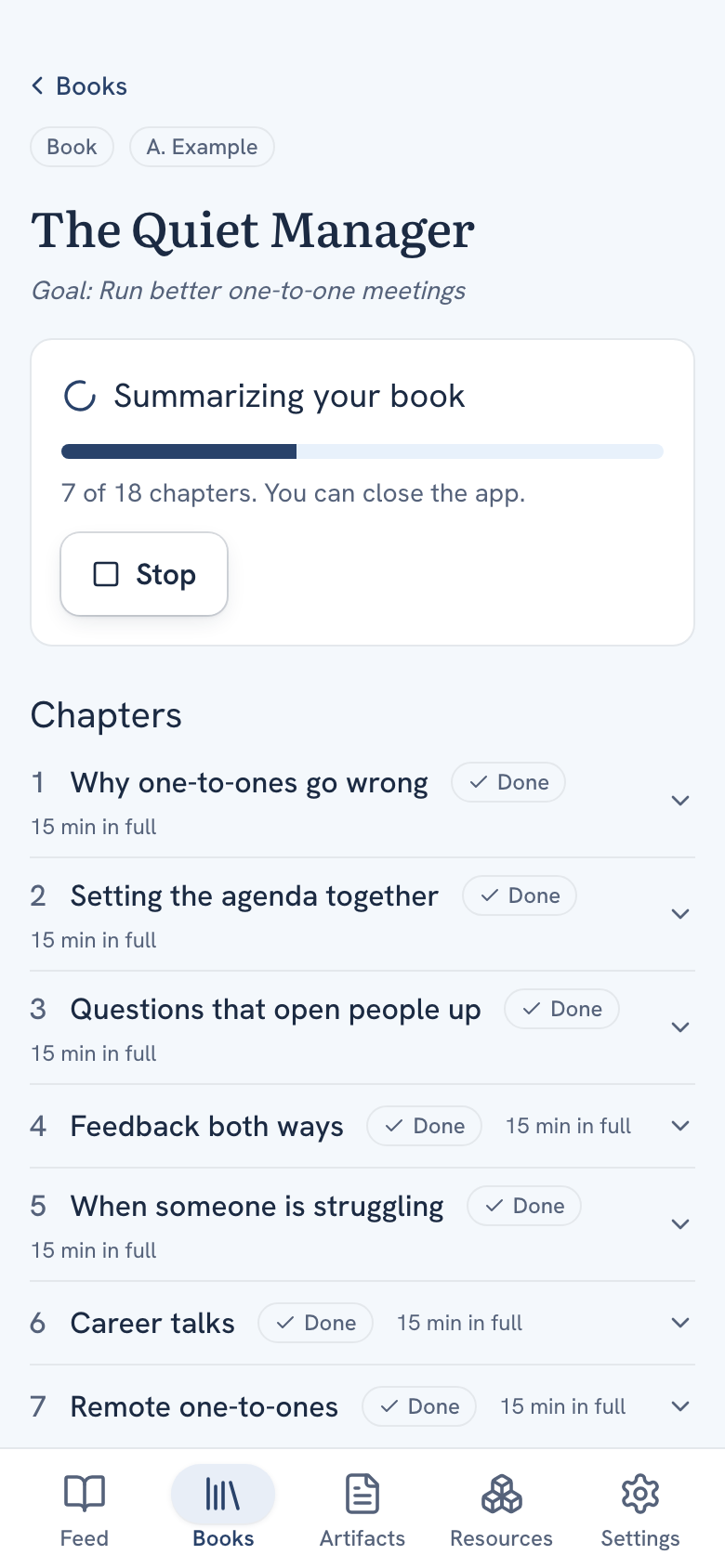
- The book page opens. It says Summarizing your book, with a bar that fills as chapters are done and a line such as "7 of 18 chapters".
- You can close the app. The work goes on without you.
When every chapter is done, the line changes to Writing the guide. After that, the book moves from In progress to Library on the Books tab, and the guide is ready.
If you have no OpenRouter key yet, the page shows "Add your OpenRouter key in Settings to get summaries." with a Go to Settings button instead of Summarize this book.
While it works
- On the Books tab, the book sits under In progress with a spinner and a line such as "7 of 18 chapters".
- A book you add while another is still working waits its turn. The list says "Waiting for the book before it", and the book page says it starts by itself.
- To end early, open the book and click Stop. The chapters not done yet are left out, and Lazy Reader writes the guide from the ones that are done.
- If you add the same file again, a message says "You already added this book" and opens the one you have.
- If something goes wrong, the book says "Stopped. Open it to retry". See Read a book guide for what to do.
Related pages: Books and reading guides, Read a book guide, A newsletter or book did not come in.