Clear your feed
Your feed is a to-read list, so it works best when you clear items out as you go. Lazy Reader gives you two ways to clear an item, Worth it and Archive, plus Delete for when you want it gone for good.
This page shows each one on the item screen, in the feed on a computer, and with a swipe on a phone.
Worth it, Archive or Delete
| Button | Use it when | What happens |
|---|---|---|
| Worth it | The item was good and you are done with it. | It leaves the feed and goes to the Archive page, in the Worth it group. Lazy Reader remembers you liked it. |
| Archive | You are done with it, or it was not for you. | It leaves the feed and goes to the Archive page, in the Archived group. |
| Delete | You never want to see it again. | It is removed with its summary and text. There is no undo. |
Worth it and Archive are both safe: you can always bring the item back. See Find and restore archived items. The difference between them is explained in Worth it and Archive.
On the item screen
- Open an item from the Feed.
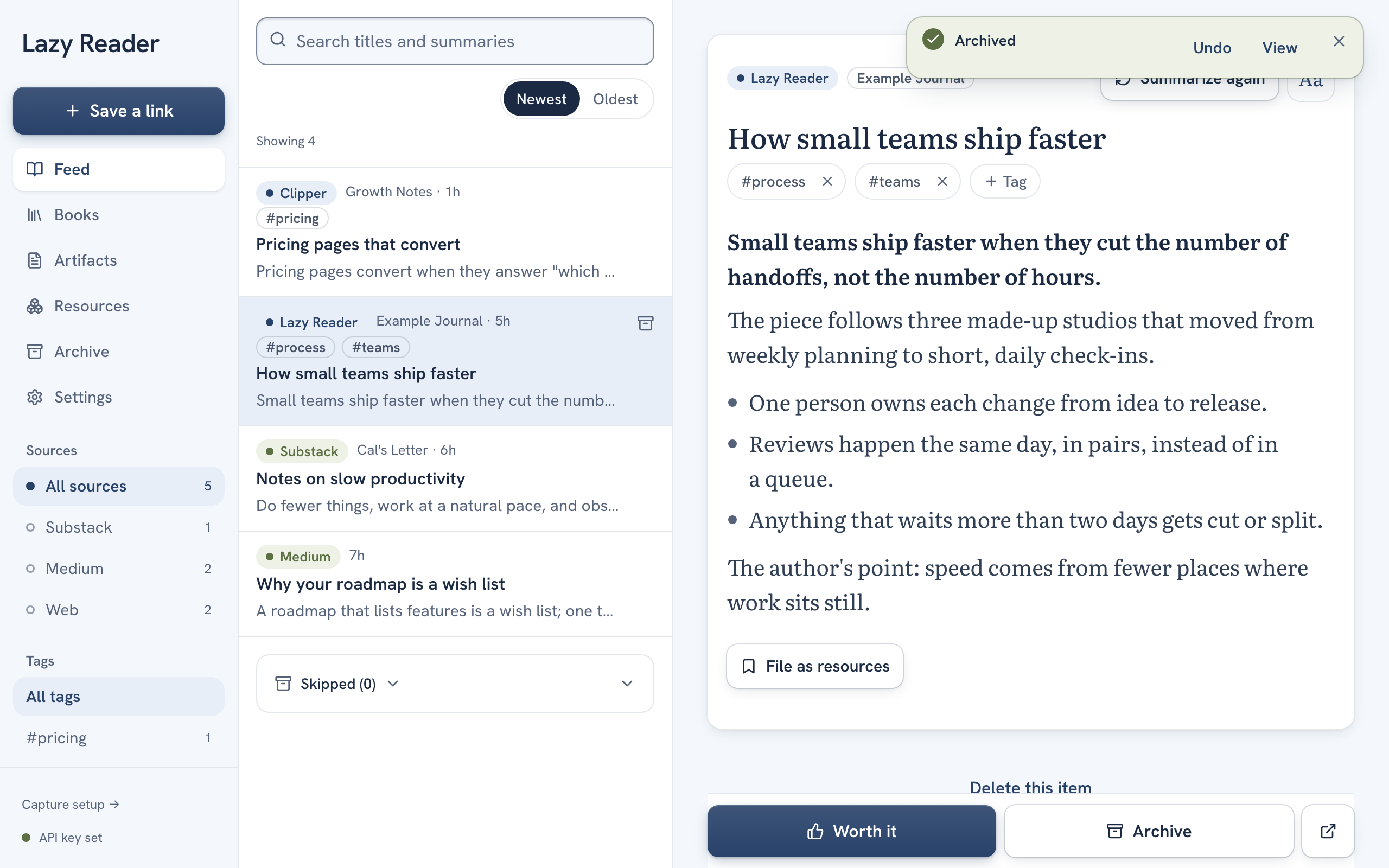
- At the bottom of the screen, click Worth it (the filled button with a thumbs up) or Archive (the outlined button next to it).
The item leaves the feed. On a phone and in a narrow window you go back to the feed. On a computer with a wide window, the next item opens on the right.
A message appears at the bottom of the screen for eight seconds: "Saved as worth it" or "Archived". It has two buttons:
- Undo puts the item back in the feed exactly as it was.
- View opens the Archive page.
In the feed on a computer
You can archive without opening an item.
- In a narrow window, each row has an Archive button at its bottom right. Click it.
- In a wide window (about 1100 pixels or wider), with the list on the left and the item on the right, a small archive icon appears at the right of a row when you point at it, and always on the open row. Click it. You can also press e to archive the open item and move to the next one.
The same "Archived" message with Undo and View appears.
iPhone style
In the iPhone style look, each feed row has an empty circle on its left. Clicking or tapping the circle archives the item.
Swipe on a phone
On a phone you clear items with a swipe, the way you clear mail. There is no Archive button on the rows.
- Swipe right on a row to mark it Worth it. A green strip with a thumbs up follows your finger. Let go once the row has moved about a quarter of the way.
- Swipe left a little to open three buttons on the right of the row: Delete, Archive and File. Tap one. Tap the row to close them again.
- Swipe left all the way, past more than half the row, to archive it in one move. A fast flick to the left that goes past the three buttons does the same.
In the iPhone app you feel a light tap when a swipe passes the point where it will act.
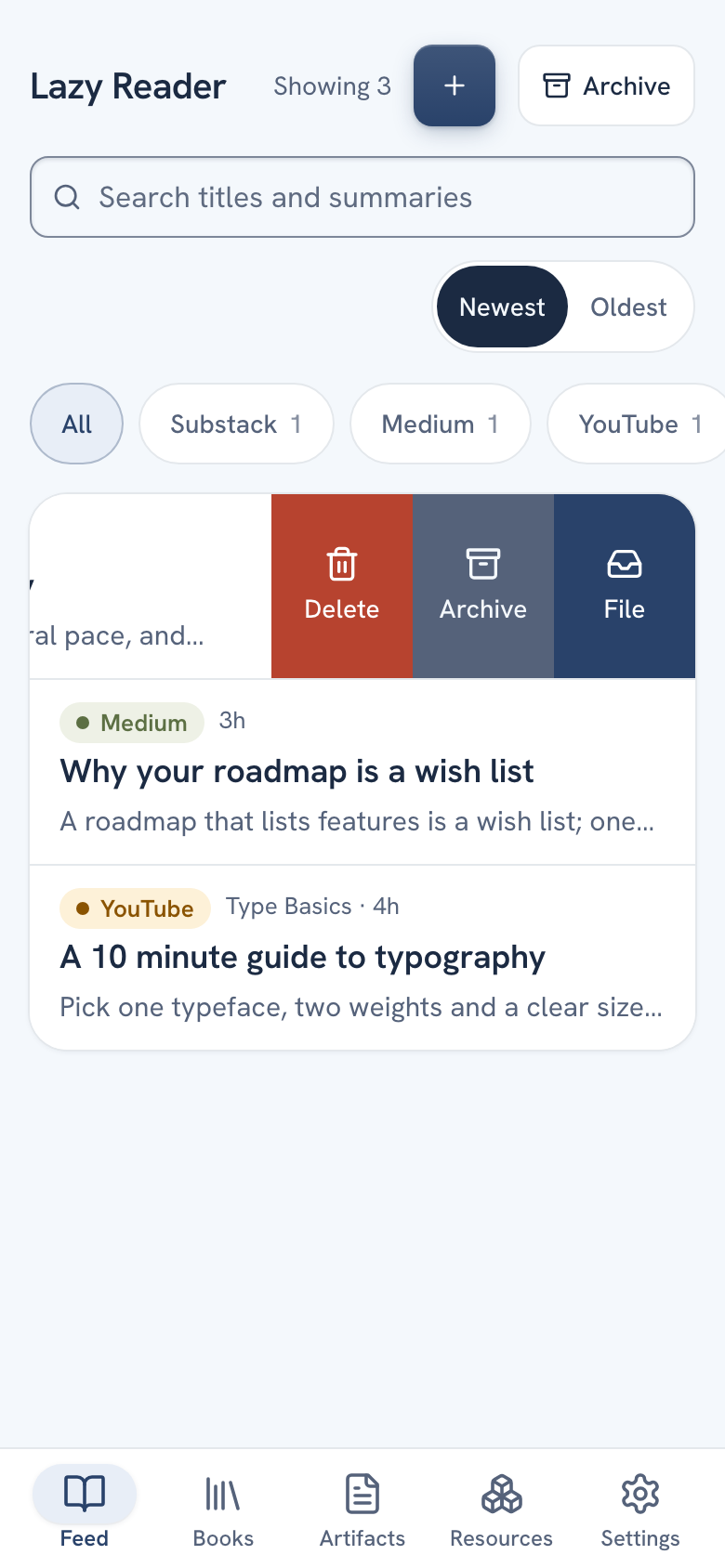
After a swipe you get the same message as on a computer, "Saved as worth it" or "Archived", with Undo and View.
File in the swipe buttons looks for tools, prompts and skills in the article and sends what it finds to Review. A message says "Looking for resources. They land in Review." with a View button. See File resources and review them.
Undo
The message after Worth it or Archive stays for eight seconds. Press Undo in that time and the item is back in your feed in its old place. After the message is gone you can still bring the item back from the Archive page with Unarchive.
Delete an item
Delete removes the item, its summary and its saved text. Use it for things you saved by mistake.
- On the item screen, scroll to the very bottom and click Delete this item. In the iPhone style look, tap Delete in the bottom toolbar.
- On a phone, swipe a row left a little and tap Delete.
Lazy Reader asks "Delete this item?" and says "This can't be undone." Click Delete to confirm or Cancel to keep it. After a delete from the item screen, a message says "Deleted".
WARNING
Delete has no undo and the item does not go to the Archive page. If you might want it later, use Archive instead.
A habit that works
Open the feed once a day. For each item, read the summary and decide: Worth it if it was good, Archive if not, or open Read the full text if you want more. On a phone that is one swipe per item.
Related pages: Worth it and Archive, Find and restore archived items, Read a summary.