Install the Chrome clipper
The Lazy Reader Clipper is an add-on for Google Chrome on your computer. With it you save the page you are reading in one click. It reads the page inside your own Chrome, where you are already signed in, so articles behind a paywall or a login you have arrive with their full text.
The clipper does three jobs:
- Save to Lazy Reader: saves the page in front of you.
- Finish waiting articles: reads saves from your phone or elsewhere that hit a paywall, with your own logins, and sends their text.
- Sync: brings in what you saved on Substack, Instagram, Medium and YouTube. Each one is marked Experimental.
Not in the Chrome Web Store yet
The clipper is not in the Chrome Web Store yet. For now you install the clipper file you were given, in Chrome's developer mode. That is a normal Chrome setting for add-ons that do not come from the store. This page will change when the store listing is live.
Step 1: unzip the clipper
- Find the clipper file you were given. Its name starts with
lazyreader-clipperand ends in.zip. - Double-click it to unzip it. You now have a folder with the same name.
- Move that folder somewhere it can stay, such as your Documents folder. Chrome loads the clipper from this folder every time, so do not delete it.
Step 2: load it into Chrome
- Open Chrome.
- Type
chrome://extensionsin the address bar and press Enter. The Extensions page opens. - Turn on Developer mode with the switch at the top right of the page. A row of new buttons appears.
- Click Load unpacked.
- Pick the clipper folder from Step 1 and confirm.
Lazy Reader Clipper now shows on the Extensions page.
To keep the clipper button in view, click the puzzle piece icon at the right of the Chrome address bar and click the pin next to Lazy Reader Clipper.
Step 3: connect it to your account
Right after you install it, the clipper opens its own Settings in a new tab, on Connection. It says Not connected and "Opens lazyreader.app. Press Connect this browser there."
- Click Sign in with Lazy Reader. A tab opens on
lazyreader.app. - If you are not signed in, the Sign in screen comes first. Sign in the way you always do.
- The page "Connect the clipper" opens. It says "Link this browser's clipper to your library."
- Click Connect this browser.
- The page says "Connected. You can close this tab."
Back in the clipper's Settings, Connection now says Connected to Lazy Reader and "Your saves go to your Lazy Reader library."
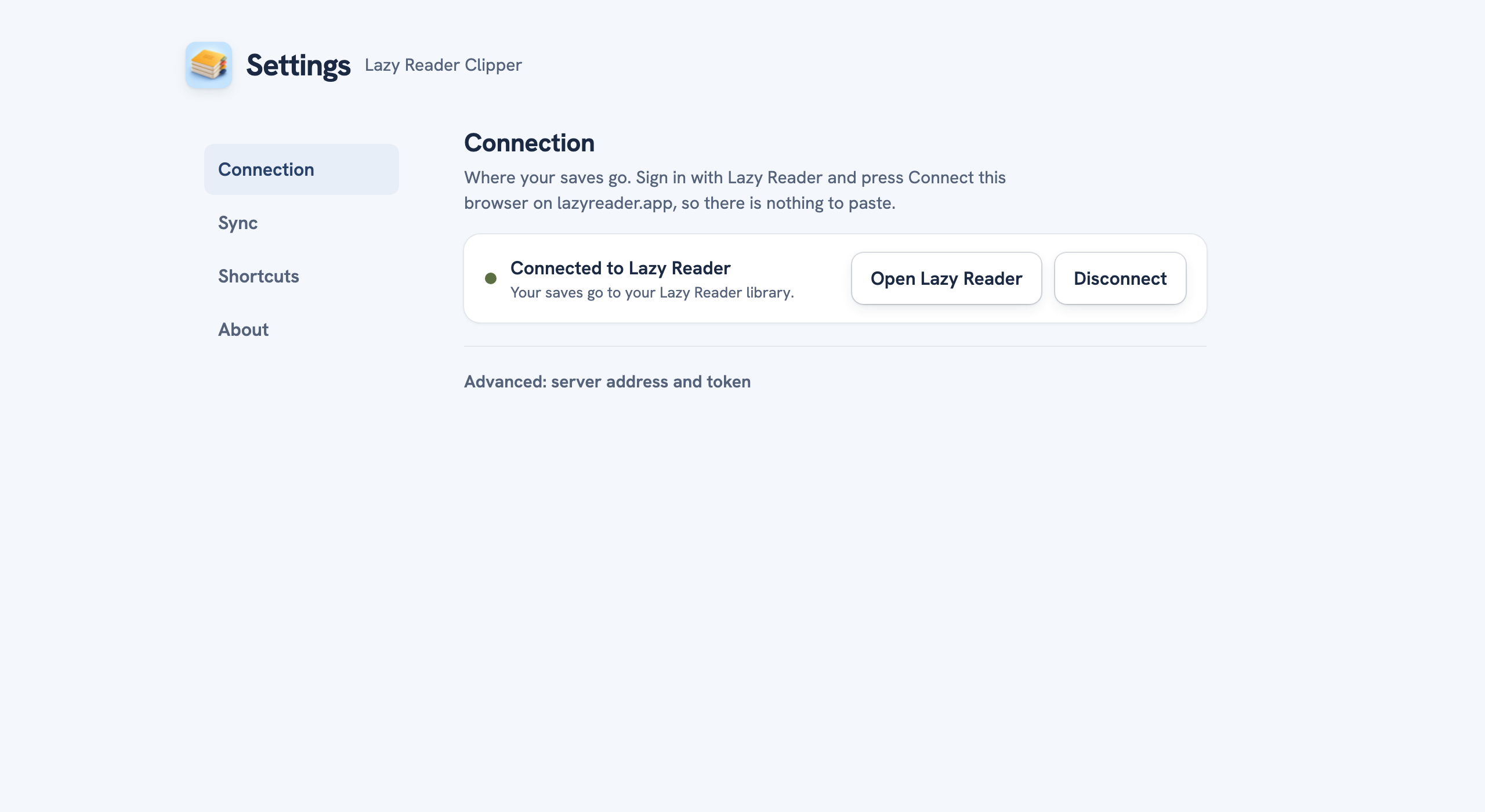
There is nothing to copy or paste. If you closed the Settings tab by mistake, click the clipper button, then the gear icon at the top of the clipper, and go to Connection.
Step 4: save a page
- Open any article in Chrome.
- Click the clipper button in the toolbar, or press
Cmd+Shift+Oon a Mac (Ctrl+Shift+Oon Windows). - Click Save to Lazy Reader.
The clipper says "Saving to Lazy Reader…" and then "Saved to Lazy Reader". The page is now in your feed with the origin Clipper (or the name of the site, such as Medium or Substack). Its summary follows in about a minute.
A very long article is cut: the message then says "Saved to Lazy Reader. The article is long, so only the first part was sent."
When the connect page says something else
| Page title | What it means | What to do |
|---|---|---|
| The clipper is not in this browser | You opened the connect page in a browser without the clipper. | Open the link in the Chrome where you installed it. |
| Update the clipper | This clipper is too old to connect from the page. | Load the newer clipper file you were given, as in Step 2. |
| "The clipper did not answer." | The clipper did not reply to the page. | Reload the page and click Connect this browser again. |
Disconnect a clipper
To cut off every connected clipper at once, open Settings in Lazy Reader, then Capture, and press Regenerate token under "Capture token for scripts". Every clipper stops saving until you press Sign in with Lazy Reader on it again.
The clipper's Settings also have Advanced: server address and token. Only change these if Lazy Reader support asks you to.
Next
- Save with the Chrome clipper covers the keys and paywalled pages.
- Finish waiting saves turns on Finish waiting articles.
- Bring in saves from Substack, Medium, YouTube and Instagram sets up Sync.