Tag items
A tag is a word you stick on an item yourself, such as pricing, for-work or read-with-sam. Lazy Reader never adds tags for you. You use them to group items your own way and then show only one group in the feed.
Tags work on saved links. Books, artifacts and resources do not have them.
Step 1: open the item
Go to the Feed and open the item you want to tag. See Read a summary if you have not opened one before.
Under the title you see the item's tags as small round chips, each starting with #. After them is a button Tag with a plus sign. A new item has only the Tag button.
Step 2: add a tag
- Click Tag. It turns into a small field that shows "Add a tag" in grey.
- Type the tag, for example
pricing. - Press Enter, or type a comma. The tag appears as a chip,
#pricing, and the field stays open for the next one. - When you are done, click anywhere else or press Esc. The field closes.
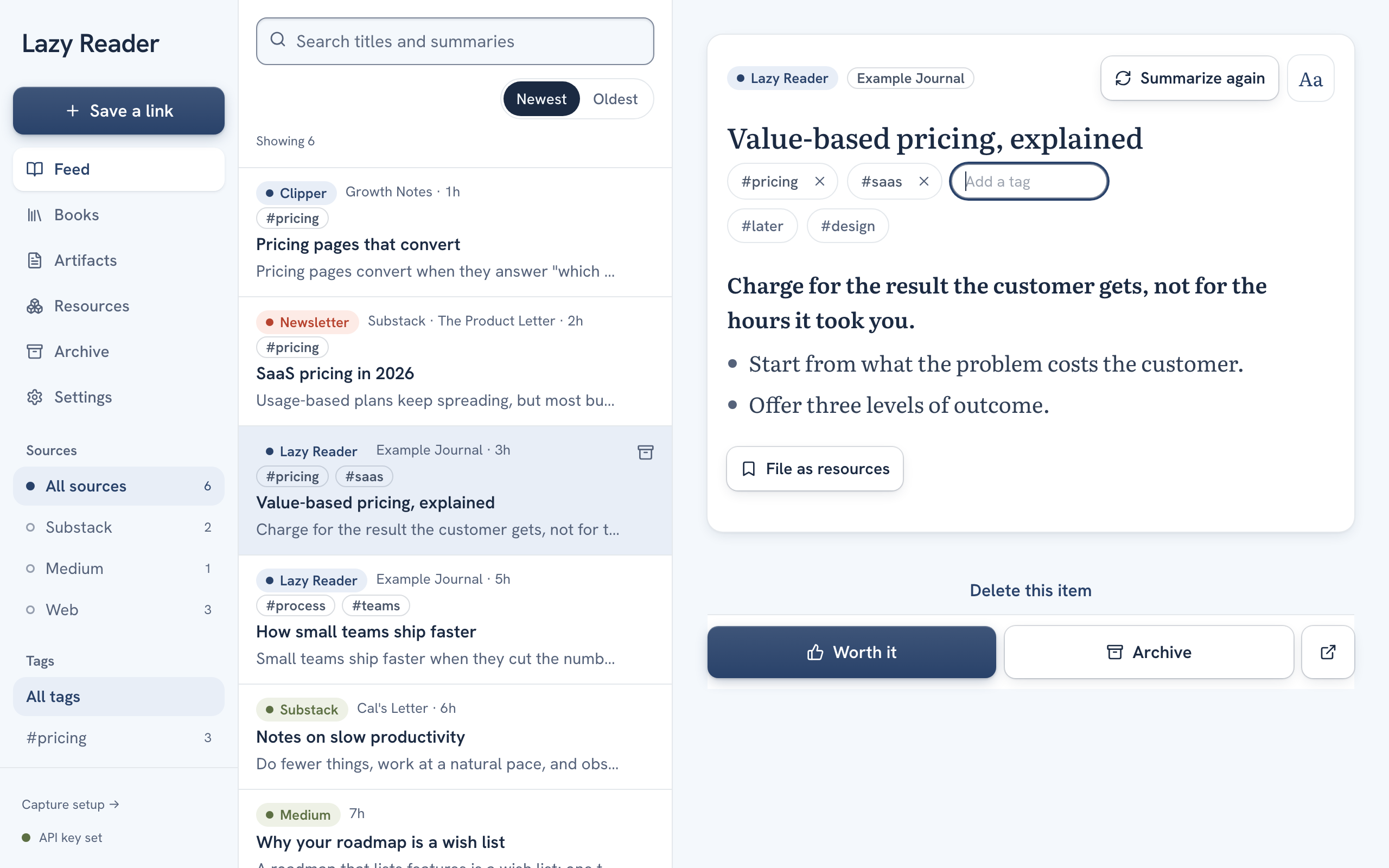
While the field is open, Lazy Reader shows up to six of the tags you already use under it, the most used first. As you type, the list narrows to the ones that contain your letters. Click one to add it. This keeps you from making pricing on one item and prices on the next.
You can add several tags in one go by typing them with commas between them, like pricing, saas, later. Each comma ends a tag.
How tags are written
- Tags are saved in lower case.
Pricingbecomespricing. - Spaces at the start and end are dropped, and double spaces become one.
read lateris one tag with a space in it. - A tag can be up to 32 characters long. Longer text is cut at 32.
- An item can carry up to 20 tags. At 20 the Tag button goes away until you remove one.
- Adding a tag the item already has does nothing.
Step 3: remove a tag
Each chip has a small x on its right. Click it and the tag is gone from this item. Other items keep theirs.
With the field open and empty, pressing Backspace removes the last tag in the row.
Tags save as you go. There is no Save button. If a change cannot be saved, for example because you are offline, a message says "Could not save tags" and the chip goes back to how it was.
Step 4: show only one tag in the feed
There are two ways.
From an item. Click the tag's name on any item, for example #pricing. Lazy Reader goes to the Feed and shows only items with that tag.
From the feed.
- On a computer, look in the left sidebar under Sources. The list headed Tags shows All tags and each of your tags with how many feed items carry it. Click one.
- On a phone, above the list of items there is a row of round buttons for tags, starting with All tags. Swipe sideways and tap one.
The Tags list and the tag buttons only appear once at least one item in your feed has a tag.
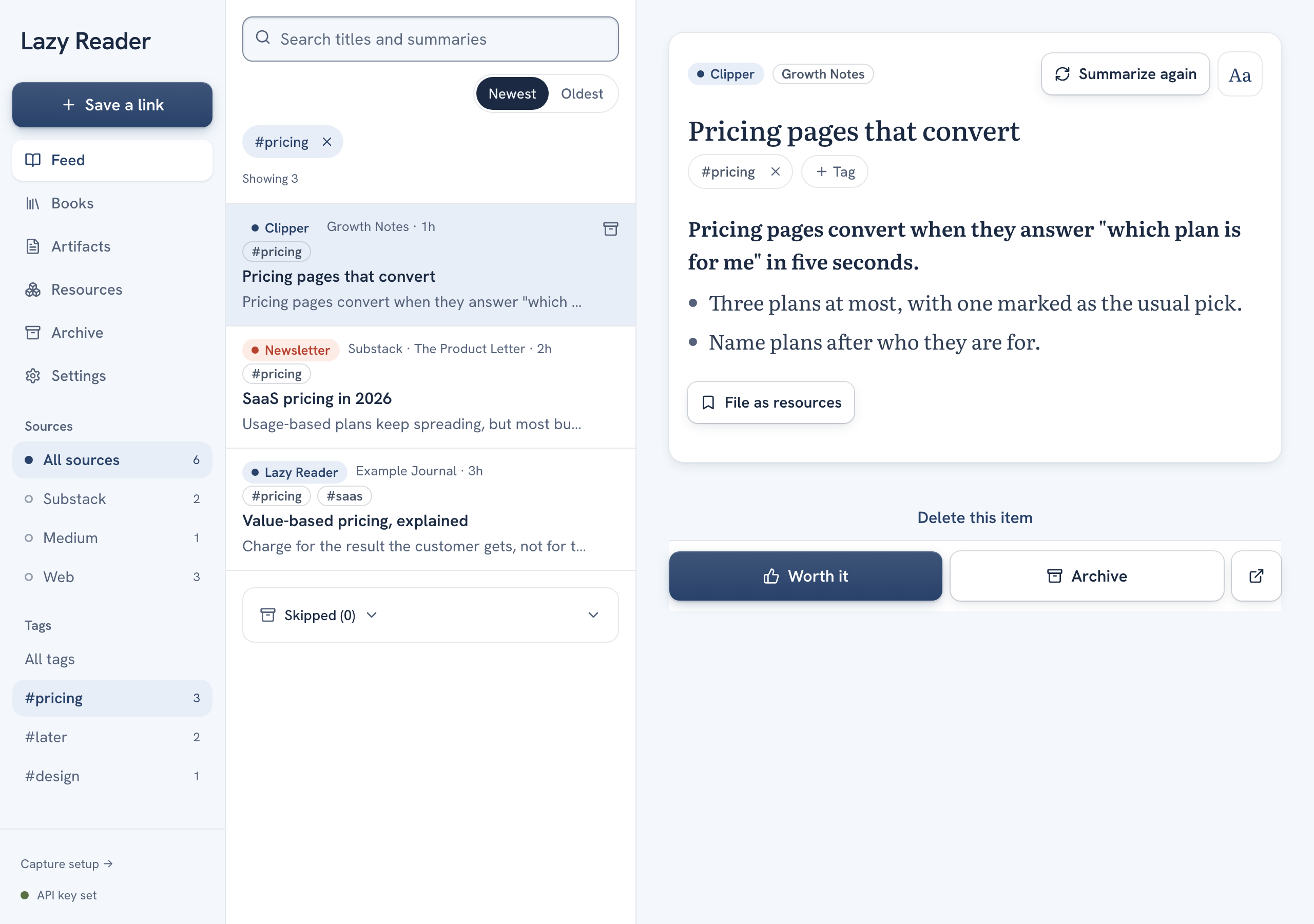
To see everything again, click All tags, or on a computer click the x on the #pricing pill above the items. Lazy Reader remembers the tag you picked in this browser.
You can combine a tag with a source and a search. See Search, sort and filter the feed.
Tags in the feed
Each row in the feed shows up to three of its tags, under the line that says where it came from. If an item has more, you see +2 or similar after the third.
Tips for useful tags
- Keep a short list and reuse it. The suggestions help with that.
- Tag by what you will do with an item (
try,share,quote) or by project, rather than repeating the topic, which the summary already covers. - Archived items keep their tags. When you move one back to the feed, its tags come with it.
Related pages: The feed, Search, sort and filter the feed, Glossary.