
Read a book guide
When Lazy Reader has summarized a book, it gives you a guide. The guide tells you what the book says, which chapters are worth your time against your goal, and how long each one takes. This page shows how to read it and what to do when a book stops halfway.
To add a book first, see Add a book.
Open the guide
- On a computer, click Books in the left sidebar. Your books are in two groups: In progress and Library. Click a book under Library. Its guide opens on the right, next to the list.
- On a phone, tap the Books tab at the bottom, then tap a book under Library. The guide fills the screen. Tap Books at the top left to go back.
Each book in the Library shows its number of chapters and how long the chapters marked Read in full take, for example "22 chapters · 95 min to read in full". With more than three books, a Search books box appears above the list. It finds books by title or author.
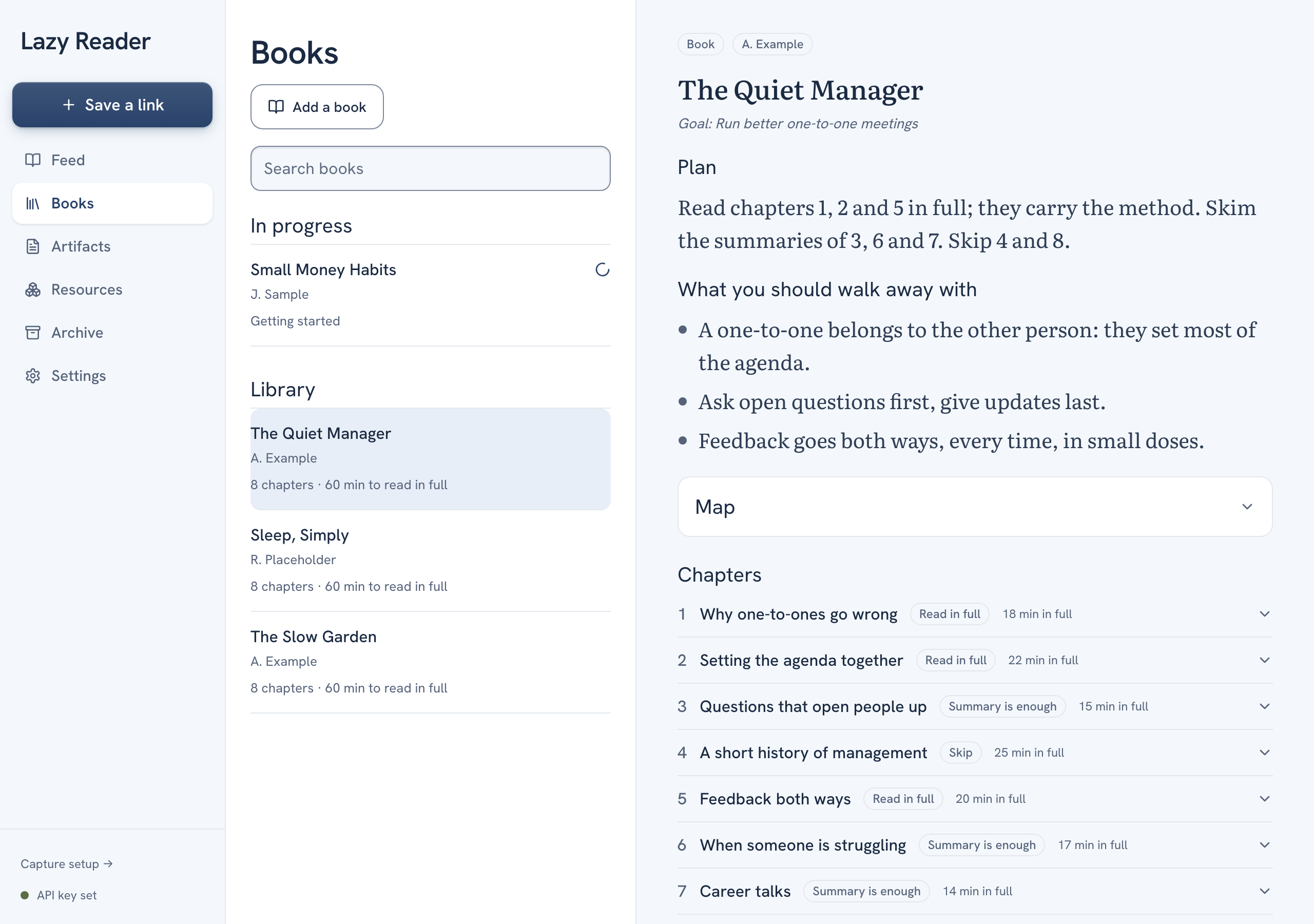
What the guide shows, from top to bottom
- The title, with a Book label and the author above it. If you wrote why you are reading it, it shows as "Goal:" and your words.
- Plan: one or two sentences with the time it takes. For example: "Read chapters 4 and 8 in full, 50 minutes; this page covers the rest, 20 minutes; the whole book is about 7 hours."
- What you should walk away with: the main points of the book as a short list.
- Map: a table of every chapter with its tier, why, and the minutes it takes to read in full. The Map is long, so it starts closed. Click Map to open it, and click again to close it.
- Exercises, when the book has any: what the book asks you to do, chapter by chapter, with a verdict against your goal. Every exercise is optional.
- Book notes: tools, people and other books the author mentions, each in a line or two.
- Chapters: the list of every chapter. See below.
Use the chapter tiers
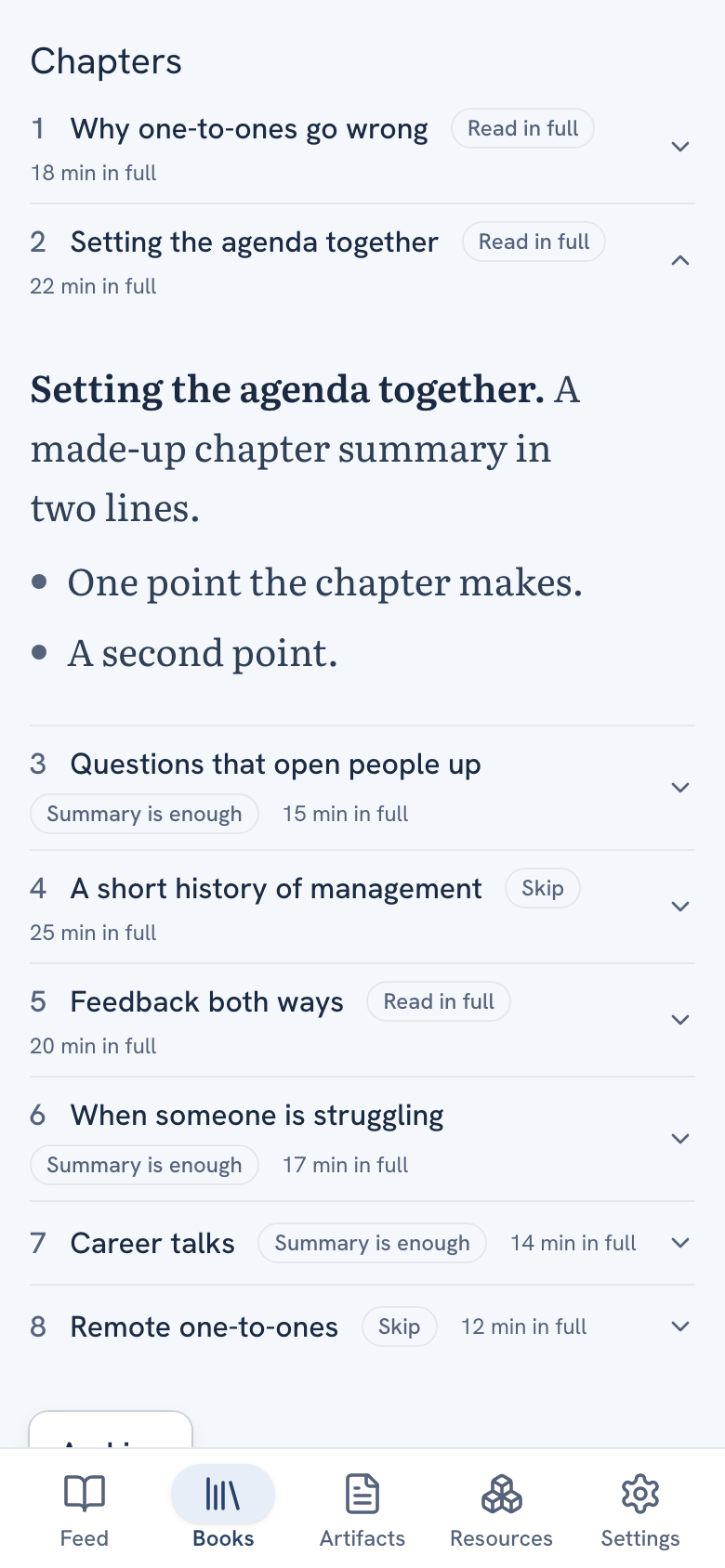
Every chapter in the Chapters list has a tier. The tier is Lazy Reader's advice for you, set against your goal:
| Tier | What it means |
|---|---|
| Read in full | This chapter is worth your time. Read it in the book. |
| Summary is enough | The summary below gives you what you need. |
| Skip | You can leave this chapter out. |
Next to the tier is the time the chapter takes to read in full, such as "12 min in full".
To read a chapter's summary, click its row. It opens below the title. Click the row again to close it. Some summaries have a small folded box with extra context. Click it to open it.
TIP
A simple way to use a guide: read the Plan, open the chapters marked Read in full in your book, and read the summaries for the rest. Come back to the Map when you want the whole picture on one screen.
When a chapter is not done
While a book works, and in a guide that is not complete, chapter rows can show other labels:
| Label | Meaning |
|---|---|
| Waiting | Not started yet. |
| Summarizing | Being summarized now. |
| Done | Summarized. The tier appears once the whole guide is written. |
| Failed | This chapter could not be summarized. The reason shows under it. |
| Left out | You unticked it when you added the book, or you stopped the book before it was done. |
A guide made from only some chapters starts with the note "Partial guide: some chapters were not summarized."
Retry a stopped book
If something went wrong, the book shows "Stopped. Open it to retry" on the Books tab. Open it. A box says This book stopped and gives the reason. Then:
- If the reason is about your OpenRouter key, for example the key is wrong or out of credit, click Fix it in Settings. Fix the key there, then come back to the book.
- Click Retry. The button says Retrying…. Only the chapters that failed are done again. Chapters that are already done keep their summary.
- If you would rather not wait, click Write a guide from what is done. Lazy Reader leaves out the missing chapters and writes the guide from the rest. This button shows only when at least one chapter is done.
Archive a book
At the bottom of the guide, click Archive to take the book out of your Books list. A message says "Moved to Archive", with Undo if you change your mind. Archived books are on the Archive page under the Books chip. Open one and click Unarchive to bring it back. See Find and restore archived items.
Change how guides are written
The chapter summaries and the guide follow standard rules. You can write your own in Settings, Reading taste, under Book chapter style and Book guide style. Your rules are used for book summaries written after you save them. See Shape your summaries.
Related pages: Books and reading guides, Add a book.