Find and restore archived items
Nothing you clear with Worth it or Archive is lost. It moves to the Archive page, where you can read it again or put it back in your feed. Books and artifacts you archive go there too.
This page shows how to open Archive, how it is laid out, and how to bring an item back.
Step 1: open Archive
- On a computer, click Archive in the left sidebar, between Resources and Settings.
- On a phone, open the Feed, Books or Artifacts tab and tap the Archive button at the top right, next to the title. Archive opens already filtered to that tab: from Feed you see your archived saves, from Books your archived books.
- Right after you archive something, press View in the message at the bottom of the screen.
On a phone, a back link at the top left takes you back to the tab you came from, for example Feed.
Step 2: read the page
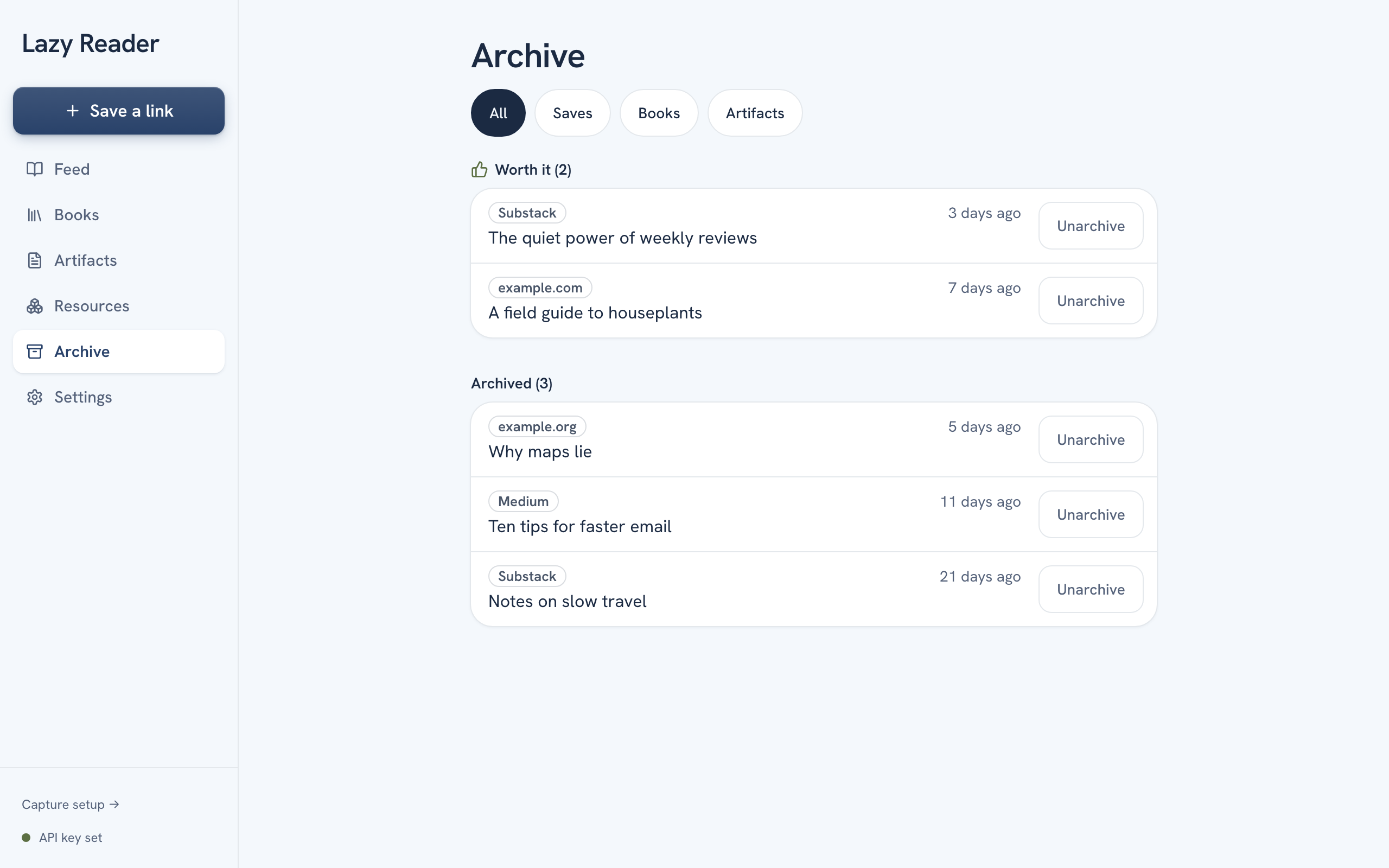
At the top is the title Archive and a row of four round buttons that filter the page:
| Button | Shows |
|---|---|
| All | Everything you archived. |
| Saves | Links you saved: articles, videos, posts, newsletters. |
| Books | Books you archived. |
| Artifacts | Documents from Claude you archived. |
The one in use is filled in dark. Under the buttons, items are in groups:
- Worth it, with the count. Items you cleared with Worth it. This group only shows when it has items.
- Archived, with the count. Items you cleared with Archive, and anything archived before Worth it existed.
- The model skipped, with the count. Only for imports, see below.
Inside each group the item you archived most recently is at the top. Each row shows a small label (the site, or Book or Artifact), when you first saved it, and the title. On the right is an Unarchive button.
If a group is empty it says "Nothing archived yet." (or "Nothing archived here yet." when a filter is on).
INFO
Archive lists the 100 items you archived most recently. It has no search field: the feed's search only looks at the feed. Use the filter buttons to narrow the page.
Step 3: read an archived item
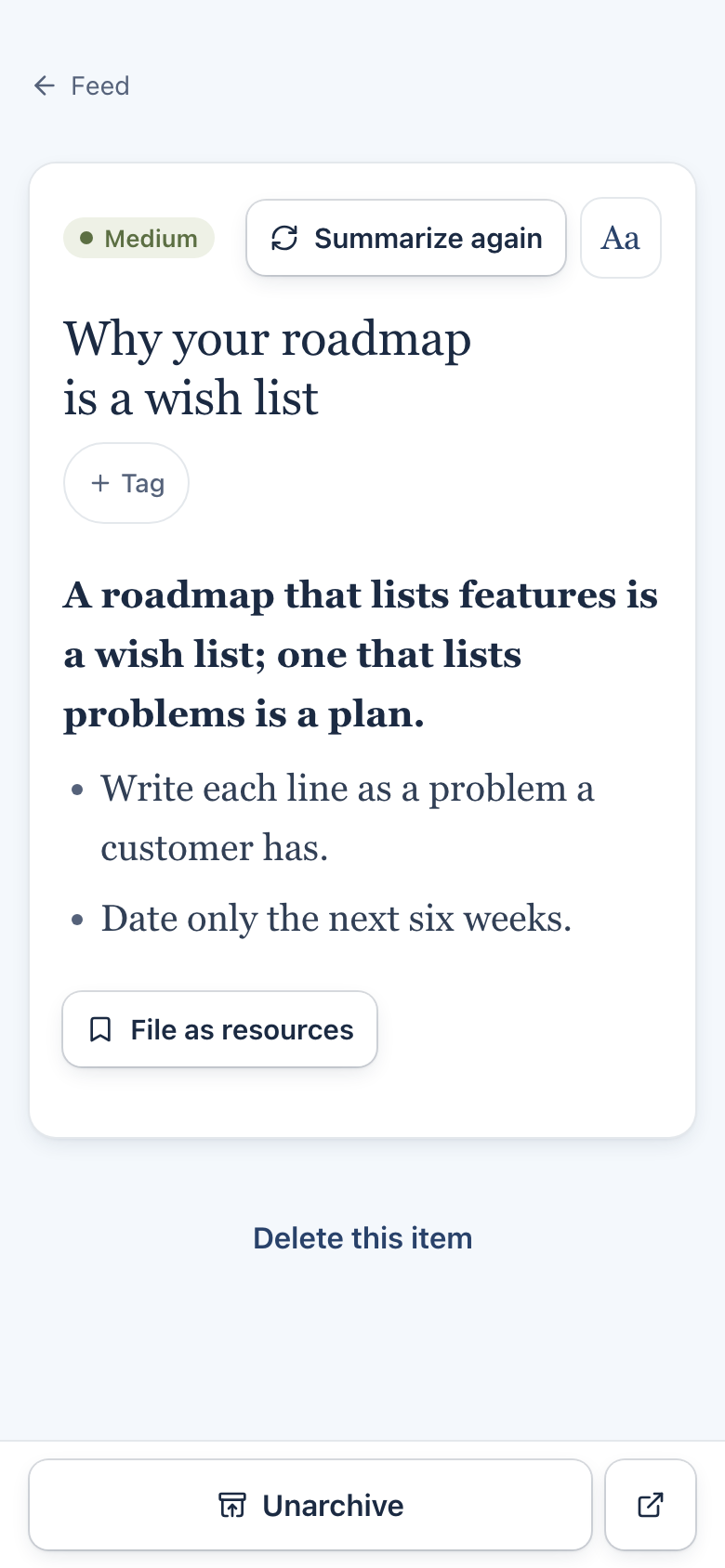
Click the row's title. The item opens like any other, with its summary and full text. Where the Worth it and Archive buttons usually are, there is one button: Unarchive.
Step 4: put an item back in the feed
You have two ways.
From the list. Click Unarchive on the right of the row. The row leaves Archive and a message says "Unarchived", with an Undo button for eight seconds.
From the item. Open it and click Unarchive in the bar at the bottom. On an item that has no summary yet, the Unarchive button sits at the top instead. A message says "Unarchived".
The item is back in your feed in its place by date. Unarchiving also clears the Worth it mark: if you clear it again later, you choose Worth it or Archive afresh.
The model skipped
This group only matters if you brought in a large batch of links through an import. When Lazy Reader sorts an import, the model can leave out items it judges as repeats or noise. Those items do not get a place in your feed. They wait here instead, under The model skipped, so you can check them.
Links you save one at a time, from the app, your iPhone, the clipper or a newsletter, are never skipped. They always get a summary and go to your feed.
Each skipped row has a grey line in italics under the title that starts with "Sorted as" and says why. To overrule the model:
- Find the row under The model skipped. It shows with the All or Saves filter.
- Click Move to feed on the right.
- A message says "Moved to feed", with Undo.
The item is now in your feed like any other save.
Skipped on the feed
On a computer, the bottom of the Feed also has a closed section called Skipped with a count. It lists the same model-skipped imports. Click it to open the list and click a title to read one. To move one back, use Move to feed on the Archive page.
Delete from Archive
To remove an archived item for good, open it and click Delete this item at the very bottom (or Delete in the toolbar of the iPhone style look). Lazy Reader asks first. This can't be undone.
Good to know
- On a phone, pull down on the Archive page to refresh it.
- Archiving a book or an artifact moves it here too. The message then says "Moved to Archive".
Related pages: Worth it and Archive, Clear your feed, The feed.