
Finish waiting saves
Some pages only show their full text to people who are signed in or pay: a paywalled newspaper, a members-only blog. When you save one, Lazy Reader's server gets only the teaser. It does not write a summary from the teaser. Instead, the save waits with the label Waiting for full text until the Chrome clipper reads the page on your computer, with your own sign-in.
This page shows how to see what is waiting and how to let the clipper finish it.
You need the Lazy Reader Clipper in Chrome on your computer, connected to your account. See Install the Chrome clipper.
Step 1: see what is waiting
There are three ways to the Waiting page:
- On the Feed, click Saves waiting for full text. This button shows under the title while at least one save waits.
- Open a waiting item. It says Waiting for full text and "Your Chrome finishes this within a minute while the Lazy Reader Clipper is running. Chrome closed? It finishes when you open it." Click See everything that is waiting.
- Open Settings, Capture, and click Waiting saves. On the right it says how many are waiting, for example "3 waiting for Chrome".
The Waiting page opens. Under the title it says "Saves behind a paywall or a login. The Chrome clipper reads them with your own sign-in."
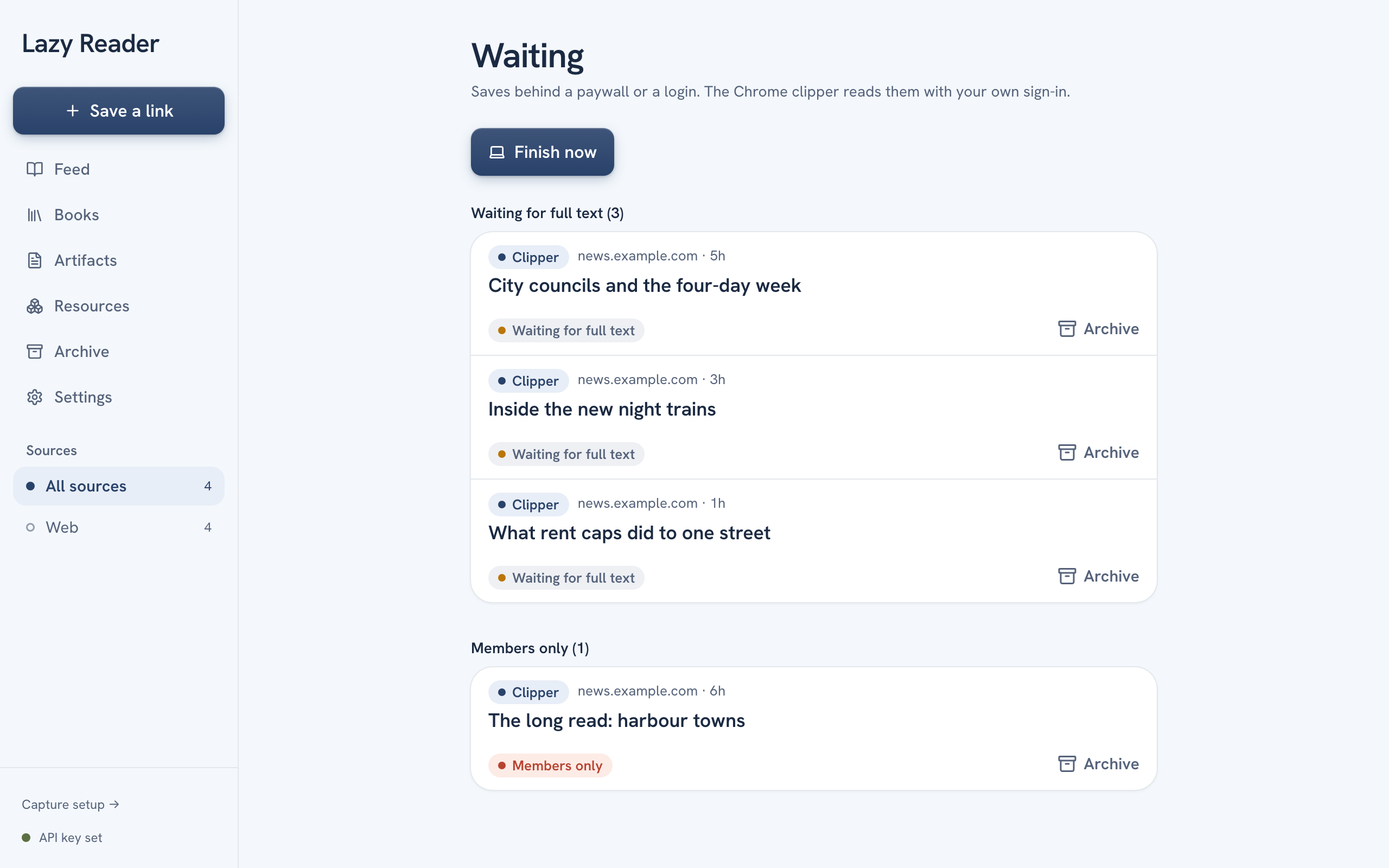
Saves are sorted into groups. Only groups with something in them show:
| Group | What it means | What you can do |
|---|---|---|
| Needs your key | Your OpenRouter or SociaVault key is missing, wrong or out of credit. | Click Fix it in Settings. |
| Waiting for full text | The clipper has not read the page yet. | Let the clipper finish it. See step 2. |
| Couldn't open | Your computer could not open the page at all. | Click Try again all with the count. |
| Members only | Your computer got the teaser too, so your account cannot see the full text. | Open the item. It has a Try again button. |
When nothing waits, the page says "Nothing waiting." with a link Back to the feed.
Step 2: turn on Finish waiting articles in the clipper
You do this once.
- On your computer, open Chrome.
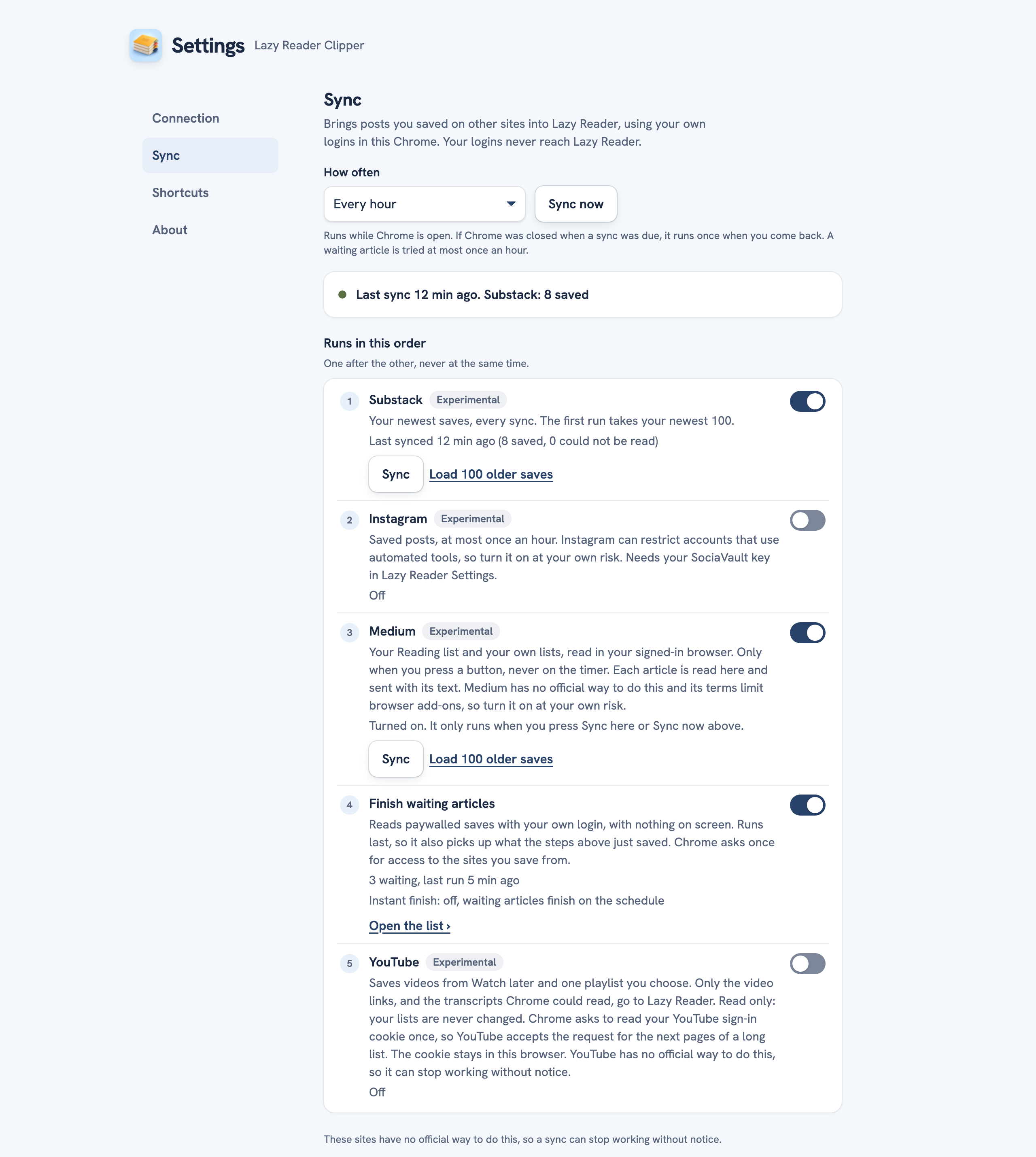
- Click the Lazy Reader Clipper button in Chrome's toolbar. In the clipper, click the gear button at the top to open its settings.
- Go to the Sync section.
- Find the row Finish waiting articles. It says "Reads paywalled saves with your own login, with nothing on screen."
- Turn its switch on.
- Chrome asks once for access to the sites you save from. Allow it.
The status line under the row changes from "Off" to something like "3 waiting, no run yet", and later "last run 5 min ago". An Open the list link takes you to the Waiting page.
If you said no to Chrome, the row says "Not allowed, so this stays off. Press Allow access to try again." Click Allow access and allow it this time.
INFO
The clipper reads each page in the background, with nothing on screen. Your sign-ins stay in your Chrome. Only the page text goes to Lazy Reader.
Step 3: let it finish
Once the switch is on, you do not need to do anything. While Chrome is open:
- A new waiting save is usually finished within a minute.
- Saves that are still waiting are tried again about once an hour.
- If Chrome was closed, the clipper finishes them when you open Chrome again.
To finish everything now:
- On the Waiting page, click Finish now. A message says "Asked the clipper to finish your waiting articles". This button shows only in a Chrome where the clipper is installed, and only while something waits.
- Or, in the clipper's Sync section, click Sync now. It runs every sync you turned on, Finish waiting articles included.
When a save is finished, its summary arrives like any other and it leaves the Waiting page. If Finished on your computer is on in Settings, Notifications, you get an alert.
If a save cannot be finished
Some pages stay closed even to your own browser. Then the item changes from waiting to one of two final states:
- Members only: "Members only, can't read the full text." Your account cannot see this page. Lazy Reader does not summarize the teaser.
- Couldn't open: "Couldn't open this page from your computer." The page did not load. Click Open link to check it yourself.
Both have a Try again button. If Could not be read is on in Settings, Notifications, you get an alert when this happens.
TIP
If the Waiting page says "Install the Lazy Reader Clipper in Chrome to finish these on your computer.", you are in a browser without the clipper. Open the page in the Chrome where you installed it.
For more fixes, see A page stays waiting.
Related pages: Save with the Chrome clipper, Item status labels, Change model, notifications and look.