Lazy Reader docs
Lazy Reader keeps the links you save and writes a short summary of each one. You save from the app, from the share sheet on your iPhone, from a Chrome clipper, by forwarding a newsletter, or by asking Claude. Each save lands in your Feed with a summary about a minute later. When you are done with it, you mark it Worth it or Archive and it leaves the feed.
There is more around the feed. Tools, prompts and repos an article mentions can be kept as Resources. A book you own (EPUB or text PDF) gets a reading guide, chapter by chapter, in Books. Documents Claude makes for you land in Artifacts.
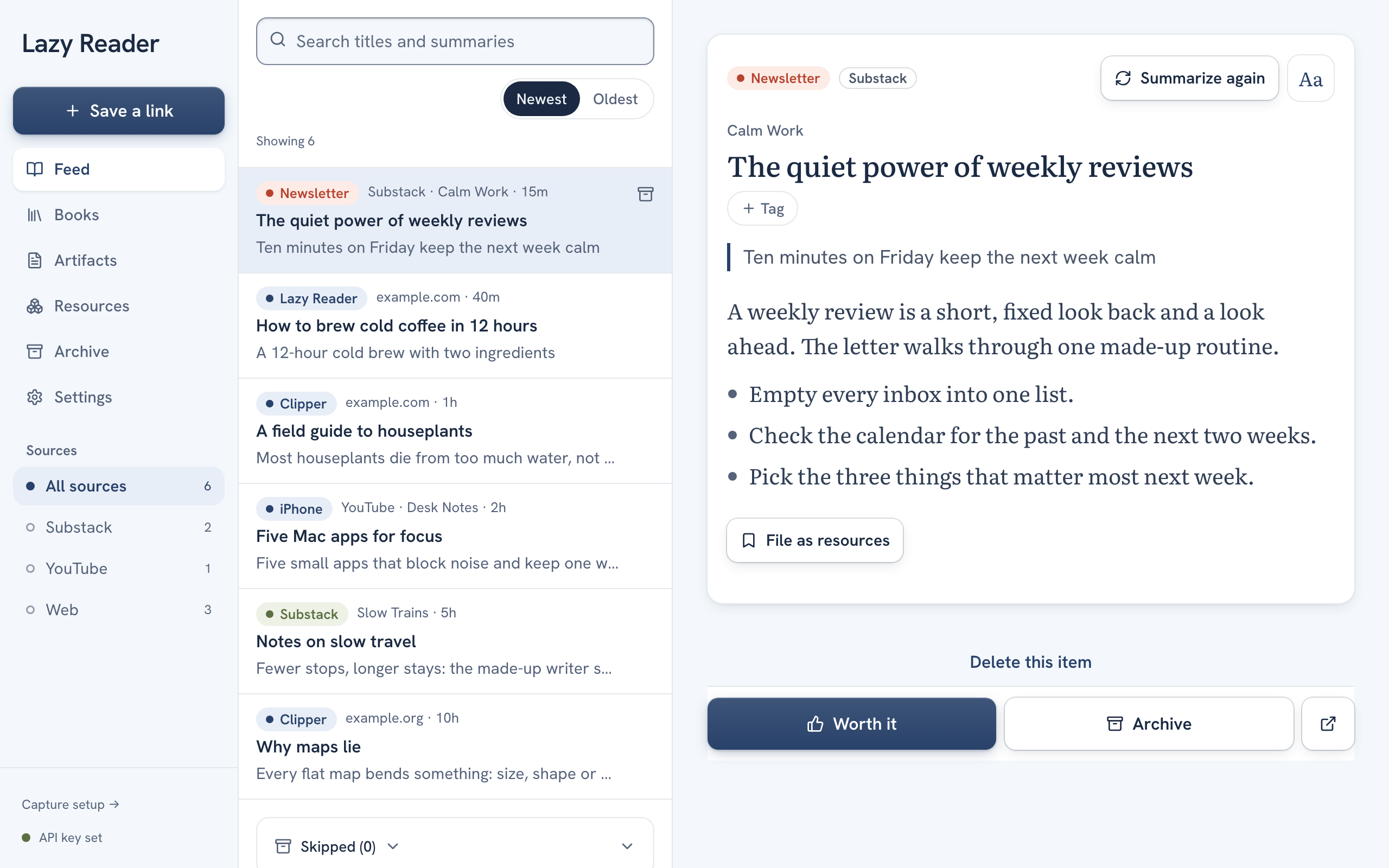
These docs are written for someone who has never opened the app. Every step names the button you press, where it is on the screen and what you see next.
Do these three things first
- Sign in and add your OpenRouter key. Lazy Reader writes summaries with your own OpenRouter key, so you pay the AI model directly. Without a key your saves wait with the label Needs a key. Getting started walks you through both in about ten minutes. If you have no key yet, start with Get an OpenRouter key.
- Save one link and read its summary. Use the Save a link button: at the top of the left sidebar on a computer, or the round + next to the "Lazy Reader" title on a phone. Paste an address and press Save.
- Set up a way to save from where you read. On an iPhone, install the iPhone app and turn on Lazy Reader in the share sheet. On a computer, install the Chrome clipper. If you read newsletters, forward them to your private address.
Phone or computer
Lazy Reader is one app at lazyreader.app. It works in any browser, and the iPhone app shows the same screens. What changes is the layout.
| Screen width | What you see |
|---|---|
| Phone | A tab bar at the bottom: Feed, Books, Artifacts, Resources, Settings. An item opens full screen. Archive is a button at the top right of Feed, Books and Artifacts. |
| Computer or tablet | A sidebar on the left with Save a link, the same five places plus Archive. |
| Wide window | The feed, Books, Artifacts and Resources split in two: the list on the left, the open item on the right. |
A tour of the app shows each screen.
What is in these docs
- Start. Sign in, get your key, install the iPhone app and the Chrome clipper, and look around. Begin with Getting started.
- Concepts. One page per idea: the feed, summaries, Worth it and Archive, ways to save, resources, Review, books, artifacts and what it costs and where your data goes.
- Guides. One task per page, in numbered steps. For example Save a link in the app, Clear your feed, Add a book and Connect Claude.
- Reference. Tables to look things up: every setting, item status labels, what Lazy Reader can read, Claude tools and limits and shortcuts.
- Troubleshooting. What to check when something does not work, starting with A save has no summary.
Words used here
The docs use the app's own words, in the same spelling as the buttons. When a word is new to you, look it up in the Glossary.
What is still in testing
The iPhone app is in testing through TestFlight. It is not in the App Store. The Chrome clipper is not in the Chrome Web Store yet: you install a build you were given. Bringing in saves from Substack, Medium, YouTube and Instagram is marked Experimental: those sites have no official way to do this, so a sync can stop working without notice.
When you are stuck
- Look for the label on the item. A label such as Needs a key, Stuck or Waiting for full text tells you what is missing. Item status labels lists every one.
- Open the matching page under Troubleshooting.
- Still stuck? Write to
[email protected].
You can come back to these docs from the app: open Settings, then Account, and press Help at the bottom.