
Search, sort and filter the feed
Once you have saved a few dozen links, you will want to find one again. The Feed has three tools for that: a search field, a sort switch, and two lists that narrow the feed to one source or one tag. You can use them together.
All three only look at the items in your feed. Items you archived are on the Archive page instead. See Find and restore archived items.
Search
The search field sits at the top of the Feed and shows "Search titles and summaries" in grey.
- Click or tap the search field.
- Type a word or a few words, for example
pricing. - Stop typing. After a short pause the feed shows only the items whose title or summary contains what you typed. The count above the list, such as "Showing 4", changes to match.
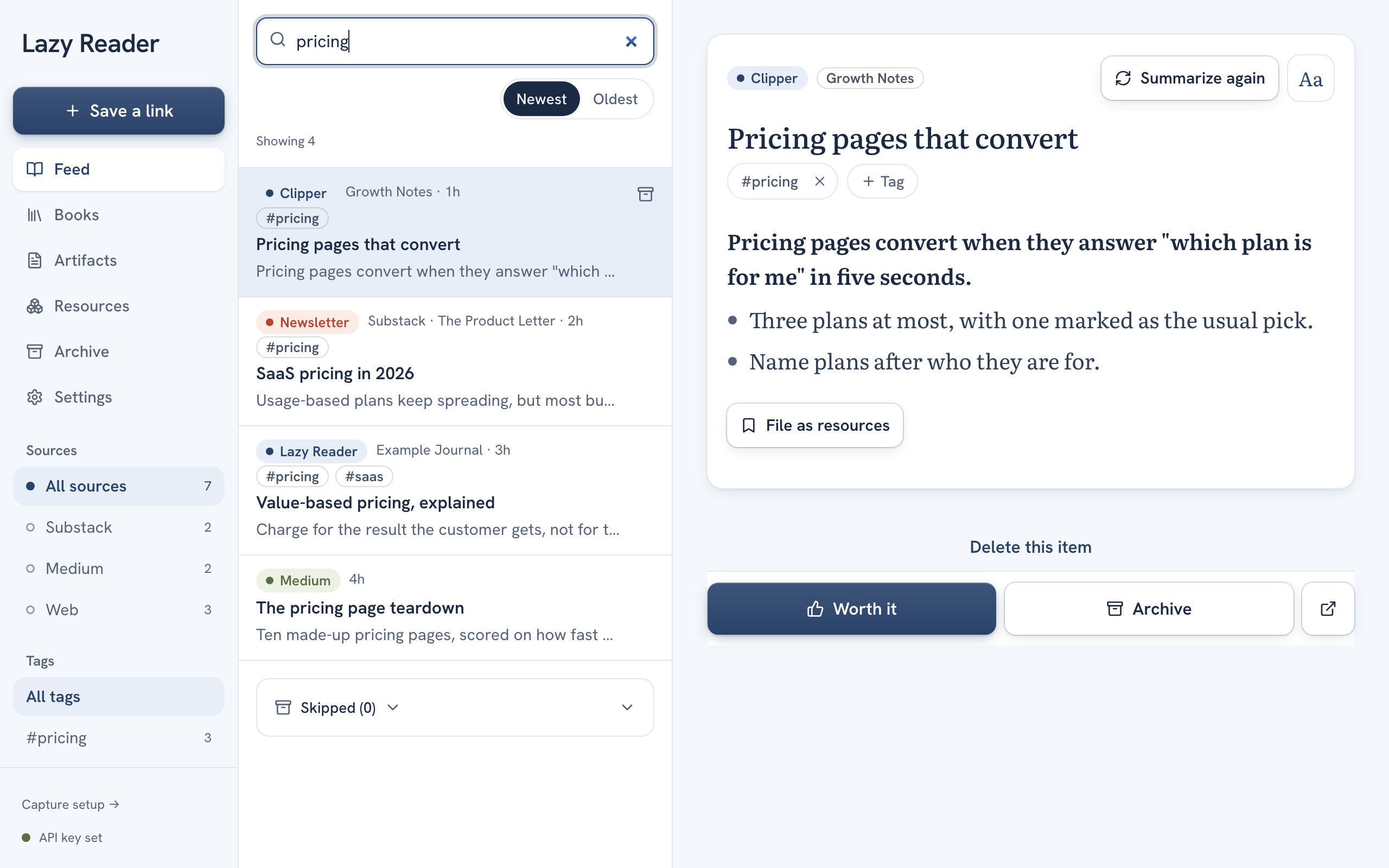
Search looks at the titles and the summaries, not the full text of the articles. Capital letters do not matter. It matches the exact letters you type, so price also finds "prices", but it will not find "cost".
Clear a search
Delete the text in the field and the whole feed comes back. If nothing matched, the feed says "Nothing here matches that search." with a Clear button. Press it to empty the field.
Keys on a wide screen
On a computer with a wide window, press / anywhere on the feed to jump into the search field. Press Esc to leave it.
Sort
Under the search field, on the right, there is a small switch with two choices: Newest and Oldest.
- Newest puts the most recently saved items at the top. This is the default.
- Oldest puts your oldest saves at the top. Handy when you want to work through a backlog from the start.
Click the one you want. The one in use is filled in dark. Lazy Reader remembers your choice in this browser, so the feed opens the same way next time.
Filter by source
The source is the site an item comes from: Substack, Medium, YouTube, Instagram, GitHub and so on. Everything without a known site is grouped under Web.
On a computer
- Look at the left sidebar, under the main buttons. There is a list headed Sources.
- It starts with All sources and the total count. Under it is each site you have items from, with how many. Sites with no items are not listed.
- Click a site, for example Substack. The feed shows only items from Substack.
Above the list of items you now see a small pill, such as Substack, with an x. Click the x, or click All sources in the sidebar, to see everything again.
On a phone
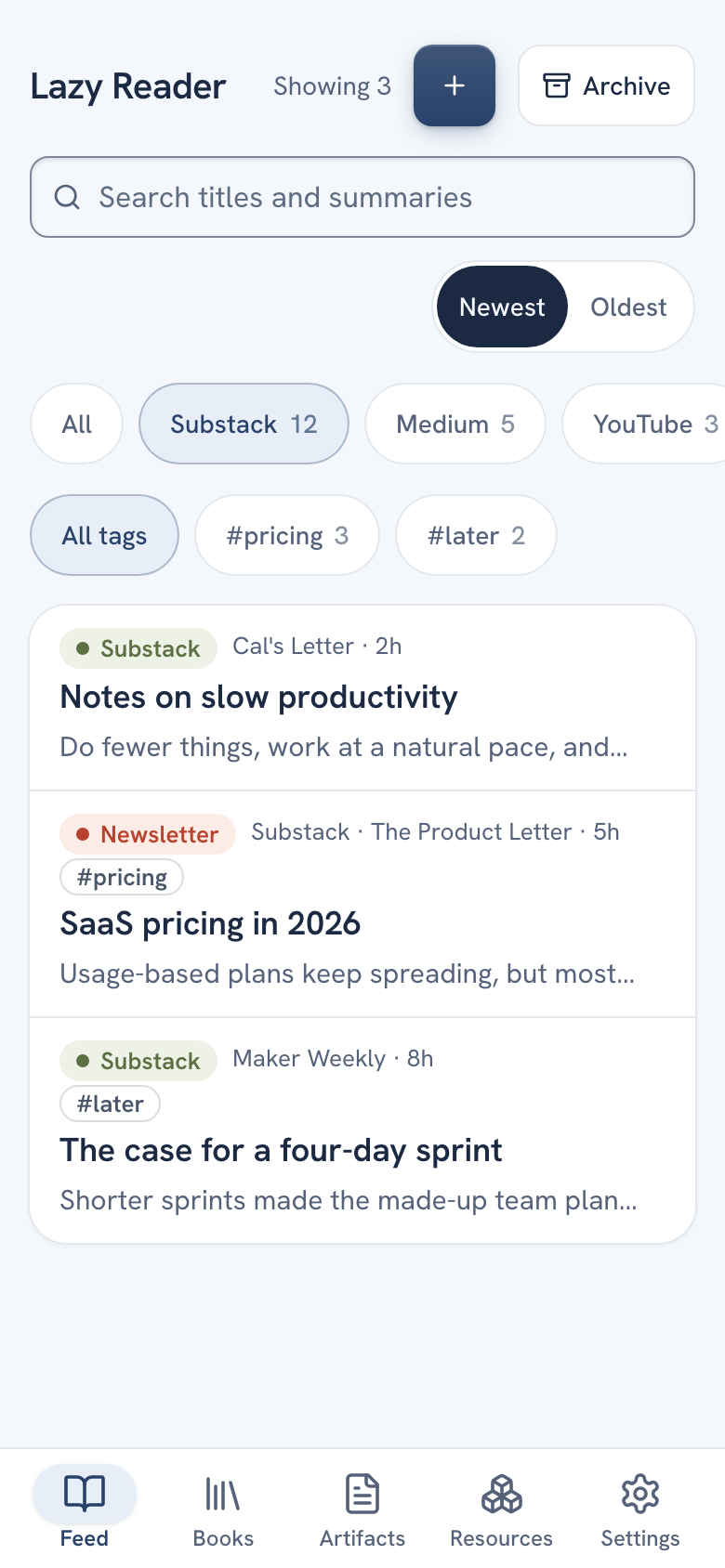
Above the list of items there is a row of round buttons: All, then each site with its count. Swipe the row sideways to see more. Tap a site to filter. Tap All to see everything again.
Filter by tag
Tags are words you add to items yourself. See Tag items. The tag filter only appears once at least one item in your feed has a tag.
- On a computer, under Sources in the sidebar there is a list headed Tags. It starts with All tags, then each tag as
#tagwith its count, the most used first. Click one to filter. A pill such as #pricing with an x shows above the items. - On a phone, a second row of round buttons appears under the sources: All tags, then each tag with its count. Tap one to filter.
You can filter by one tag at a time. Tapping a tag on an item also filters the feed by that tag and takes you back to the feed.
Use them together
Search, sort, source and tag all stack. For example: source YouTube, tag #design, search figma, sorted Oldest. Your choice of source and tag is remembered in this browser, like the sort.
If a filter leaves nothing, the feed tells you why and offers one button out:
| The feed says | Button |
|---|---|
| "Nothing here from this source." | Show all sources |
| "Nothing here with this tag." | Show all tags |
| "Nothing here with this source and tag." | Clear filters |
INFO
The counts next to sources and tags are for your whole feed. They do not change when you search.
Long feeds
The feed loads 50 items at a time. At the bottom of the list, press Older to load the next 50. Search and filters work on your whole feed, not only the items already loaded.
Related pages: The feed, Tag items, Clear your feed.