
Get an OpenRouter key
Lazy Reader does not have its own AI plan. It writes every summary with your own OpenRouter key, so you pay the model directly, and only for what you use. This page shows how to get a key and put it into Lazy Reader. It takes about five minutes.
OpenRouter is a separate service at openrouter.ai. One OpenRouter account and one key let Lazy Reader call many different AI models. You add credit to your OpenRouter account, and each call takes a little of it.
What your key pays for
Your key is used each time Lazy Reader asks a model to read something for you:
| What you do | What the key pays for |
|---|---|
| Save a link | One summary per link. Try again and Summarize again add another call. |
| Add a book | At least one call per chapter. A long chapter is split into parts: one call per part, then one to join them. One more call writes the whole-book guide. |
| File as resources on an article | One call to read the article and pull out the tools, prompts and skills in it. |
| A resource lands in Review | One call to pick its type and write What it does. |
You can see what was used on the Usage page in Settings. See What it costs and where your data goes.
Step 1: make an OpenRouter account and add credit
- Sign in to Lazy Reader and open Settings. On a computer, click AI model in the list of groups on the left; it has an amber dot until you add a key. On a phone, tap the AI model row; it says Key needed.
- Under "Summaries are written with your own OpenRouter key, so you pay the model directly." click Get a key. The OpenRouter keys page opens in a new tab.
- Sign up for OpenRouter, or sign in if you already have an account.
- Add credit to your OpenRouter account.
TIP
Without credit, OpenRouter refuses to run the model. Lazy Reader still saves your key, but tells you the account is out of credit and no summary is written until you add some.
Step 2: create a key and copy it
- On the OpenRouter keys page, create a new key.
- Copy the key. It is a long line of letters and digits that starts with
sk-or-.
Paste it into Lazy Reader right away, before you copy anything else.
Step 3: paste the key into Lazy Reader
- Go back to the Lazy Reader tab, still on AI model. On a computer you can also use Setup, which shows the same form while a step is left.
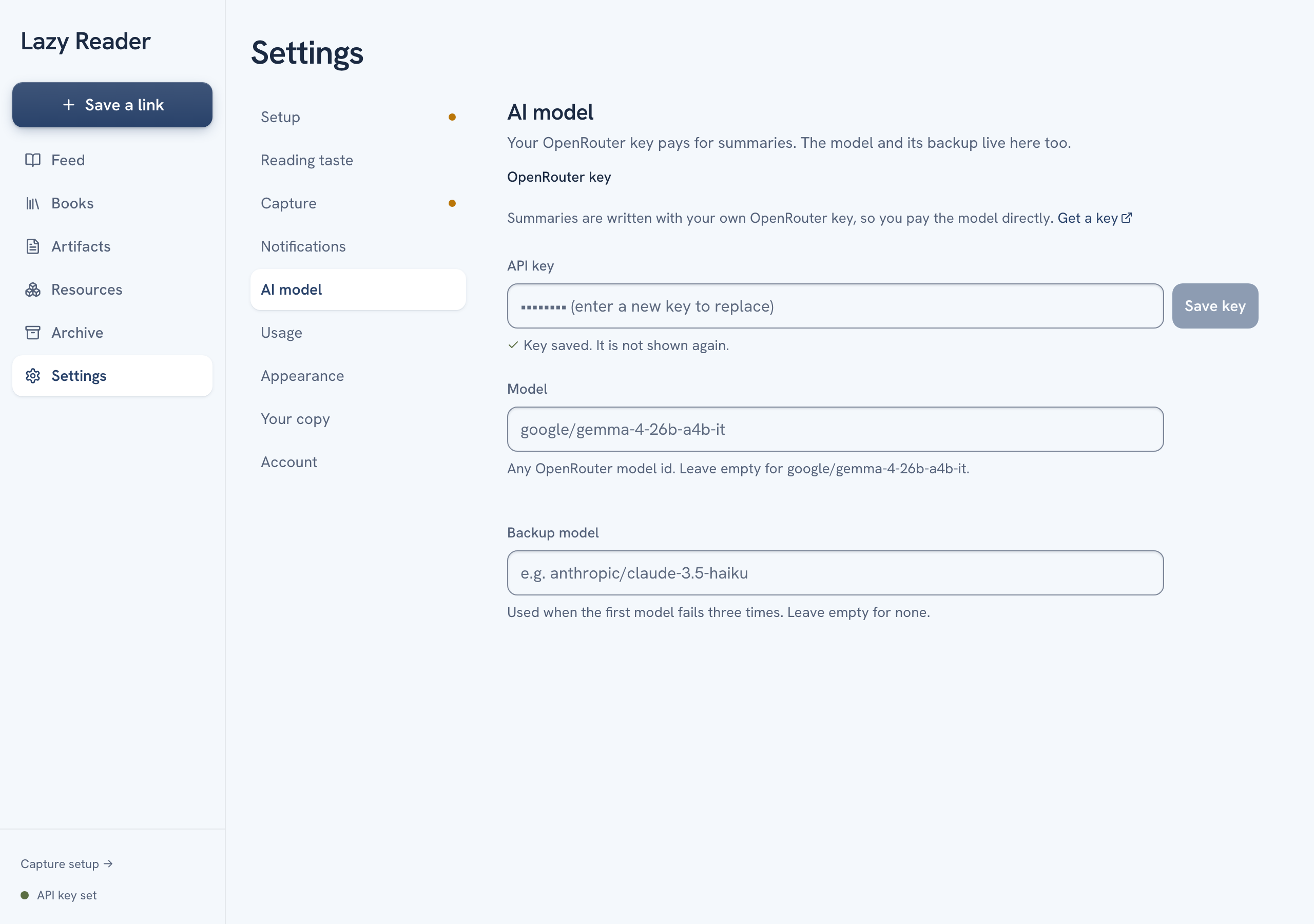
- Click into the API key field. It shows
sk-or-…while it is empty. - Paste the key.
- Click Save key. The button reads Saving… while Lazy Reader checks the key with OpenRouter.
What you see after saving
A message appears at the bottom of the screen. It tells you what OpenRouter said.
| Message | What it means | What to do |
|---|---|---|
| Key works | The key is saved and OpenRouter accepted it. | Nothing. Your next save gets a summary. |
| Key works, summarizing 3 items | Saves that were waiting for a key went back in the queue. | Wait about a minute and check the feed. |
| Saved. Your OpenRouter account is out of credit. | The key is saved but has no credit behind it. | Add credit on OpenRouter, then save the key again. |
| Key saved. OpenRouter did not answer, so it is not checked yet. | OpenRouter did not reply in time. | Save a link and see if it gets a summary. |
| Key not saved | OpenRouter refused the key. The message says why. | Copy the key again from OpenRouter and paste it. |
If you see "This key has a character a key can't have", a space or a stray character came along with the copy. Copy the key again from OpenRouter and paste it.
Once the key is saved:
- Under the field you see "Key saved. It is not shown again." Lazy Reader stores your key encrypted and never shows it back to you.
- In Setup, the OpenRouter key row changes from Needed to Saved.
- On a computer, the bottom of the left sidebar says API key set instead of No API key.
Change or replace the key
When a key is saved, the field shows dots and "(enter a new key to replace)". To change it, paste the new key into the same field and click Save key. The old one is replaced.
If you delete a key on OpenRouter, Lazy Reader cannot use it any more. Saves then show Failed, and the item says "Your OpenRouter key isn't working. Fix it in Settings › AI model." Save a working key and those saves are tried again.
Pick a model (optional)
Under the key, the AI model group has two more fields. Both save when you click out of them.
- Model: any OpenRouter model id. Leave it empty to use
google/gemma-4-26b-a4b-it. - Backup model: "Used when the first model fails three times. Leave empty for none."
Bigger models cost more per summary. The Usage page shows the cost per model, so you can compare. Change model, notifications and look has the steps.
Next
Go back to Getting started and save your first link.