Save with the Chrome clipper
The Lazy Reader Clipper is a small add-on for Chrome on your computer. With one click it sends the page you are reading to Lazy Reader. Because it reads the page inside your own Chrome, it sends what you can see: an article behind your subscription or your login arrives with its full text, which Lazy Reader's server could not read on its own.
This page shows how to save a page, what the clipper window tells you, and what happens with paywalled pages.
Before you start
The clipper must be installed and connected to your account. It is not in the Chrome Web Store yet: you load the build you were given into Chrome by hand. See Install the Chrome clipper. When it is connected, the bottom of the clipper window says Connected.
Step 1: open the page you want to keep
Go to the article in Chrome, as you normally would. If the site needs a login or a subscription, sign in first and make sure you can read the whole article on screen.
Step 2: open the clipper
Click the Lazy Reader Clipper button in Chrome's toolbar, at the top right of the window, next to the address bar. If you do not see it, click the puzzle piece icon there and pin the clipper so it stays visible.
You can also press Cmd+Shift+O on a Mac or Ctrl+Shift+O on Windows.
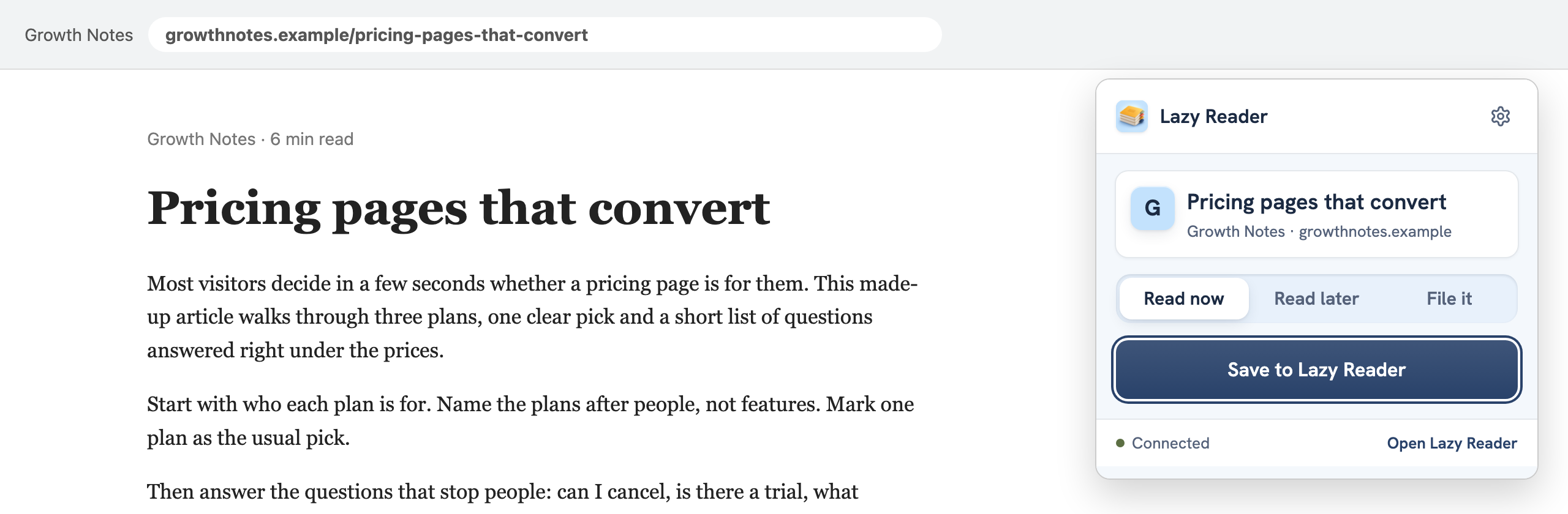
A small window drops down from the button. From top to bottom it shows:
- Lazy Reader and a gear button at the top. The gear opens the clipper's settings.
- A card with the page's title and the name of the site. You can click the title and change it before you save.
- A row of three tabs: Read now, Read later and File it.
- A wide button, Save to Lazy Reader.
- At the bottom, Connected or Not connected, and a link Open Lazy Reader.
TIP
The three tabs are left over from an older version of Lazy Reader. Whichever one is picked, the page lands in your feed. To keep the tools or prompts an article mentions, use File as resources on the item later. See File resources and review them.
Step 3: save
Click Save to Lazy Reader.
The window changes at once to "Saving to Lazy Reader…". The clipper reads the page, including parts that only load as you scroll, as on Notion pages. Clicking twice does not save twice.
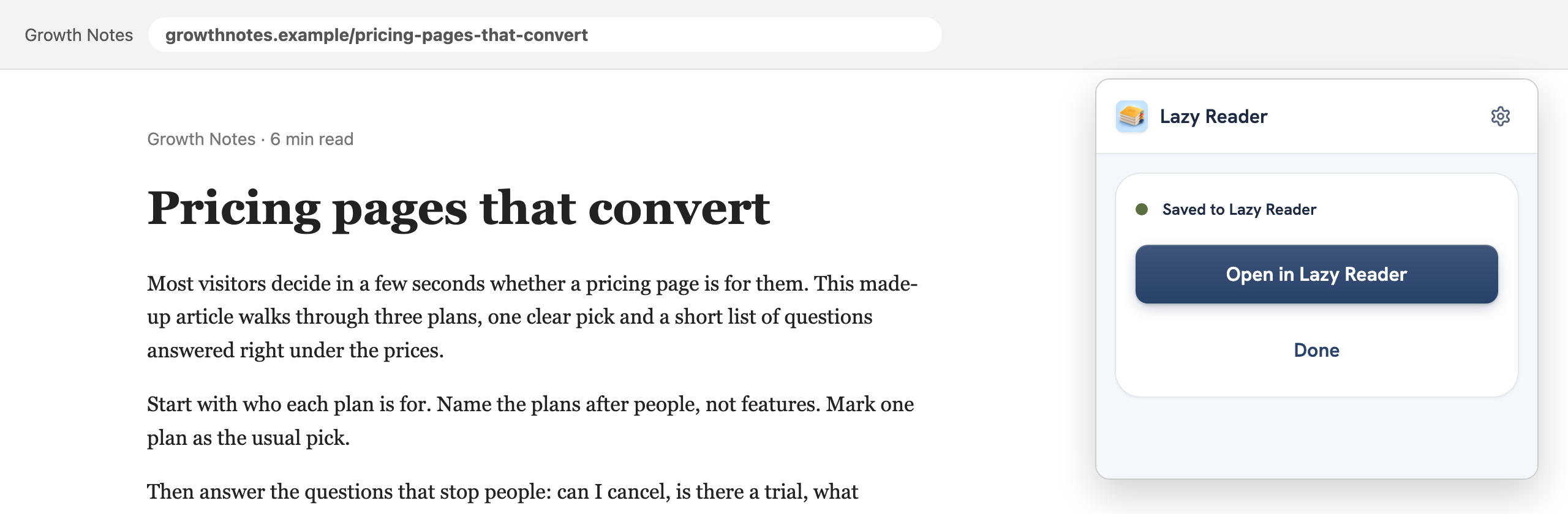
When it is done the window says Saved to Lazy Reader, with two buttons:
- Open in Lazy Reader opens the new item in a new tab.
- Done closes the window.
If you do nothing, the window closes by itself after about a second and a half. If you move the mouse over it, it stays open so you can click a button.
The item shows up at the top of your Feed. Its row carries a small label for where it came from: the site's name for Medium, Substack, YouTube and Instagram pages, and Clipper for everything else. The summary follows in about a minute.
Save with one key press
Alt+Shift+O is "Quick clip". It opens the clipper and saves the page straight away, as if you had clicked Save to Lazy Reader. Use it when you do not need to change the title.
To change the keys, open the clipper's settings with the gear, click Shortcuts in the list of sections, then Change in Chrome. Chrome opens its own page where every add-on's keys are set.
Paywalled and members-only pages
This is where the clipper helps most. Lazy Reader's server cannot sign in to sites for you, so a link you save from your iPhone or from the app may stop at the paywall. Lazy Reader never writes a summary from the teaser. Instead the item waits with the label Waiting for full text.
With the clipper you have two ways to fill it:
- Save from the page. Open the article in Chrome while signed in and click Save to Lazy Reader. The text you see is sent, and the waiting item gets its summary.
- Let the clipper finish it. In the clipper's settings, under Sync, turn on Finish waiting articles. The clipper then reads waiting saves with your login, without opening a tab you can see, whenever Chrome is open. See Finish waiting saves.
What the window can say
| Message | What it means | What to do |
|---|---|---|
| "Saving to Lazy Reader…" | It is reading and sending the page. | Wait. |
| "Saved to Lazy Reader" | The page is in your feed. | Nothing. |
| "Saved to Lazy Reader. The article is long, so only the first part was sent." | The page was very long. Lazy Reader got the start of it. | Nothing. The summary covers the part that was sent. |
| "Not connected to Lazy Reader." | The clipper has no working connection to your account. | Click Sign in with Lazy Reader in the window and follow Install the Chrome clipper from the connect step. |
| "Save failed" with a reason | Something else went wrong. | Click Try again. |
If the clipper keeps failing, see The clipper does not save.
WARNING
Regenerate token in Lazy Reader's Settings disconnects every clipper. After you press it, open each clipper and sign in again.
Related pages: Ways to save, Bring in saves from Substack, Medium, YouTube and Instagram, Finish waiting saves.