
File resources and review them
Many articles are lists of things: apps, GitHub repos, prompts, skills. Lazy Reader can pull each of those out of an article and keep it in the Resources tab. Before a new resource joins your list, it waits in Review, where you check it and press Approve.
This page walks you through it, from one article to an approved list. You need a saved article that already has its summary, and an OpenRouter key in Settings. Filing uses model calls on your key.
Step 1: file an article as resources
- Open the article from your Feed.
- Under the summary, click File as resources. It has a small bookmark icon.
- Under the button you see "Looking for resources…". Lazy Reader reads the whole article and picks out every tool, repo, prompt or skill it names. Leave the page open or carry on reading something else.
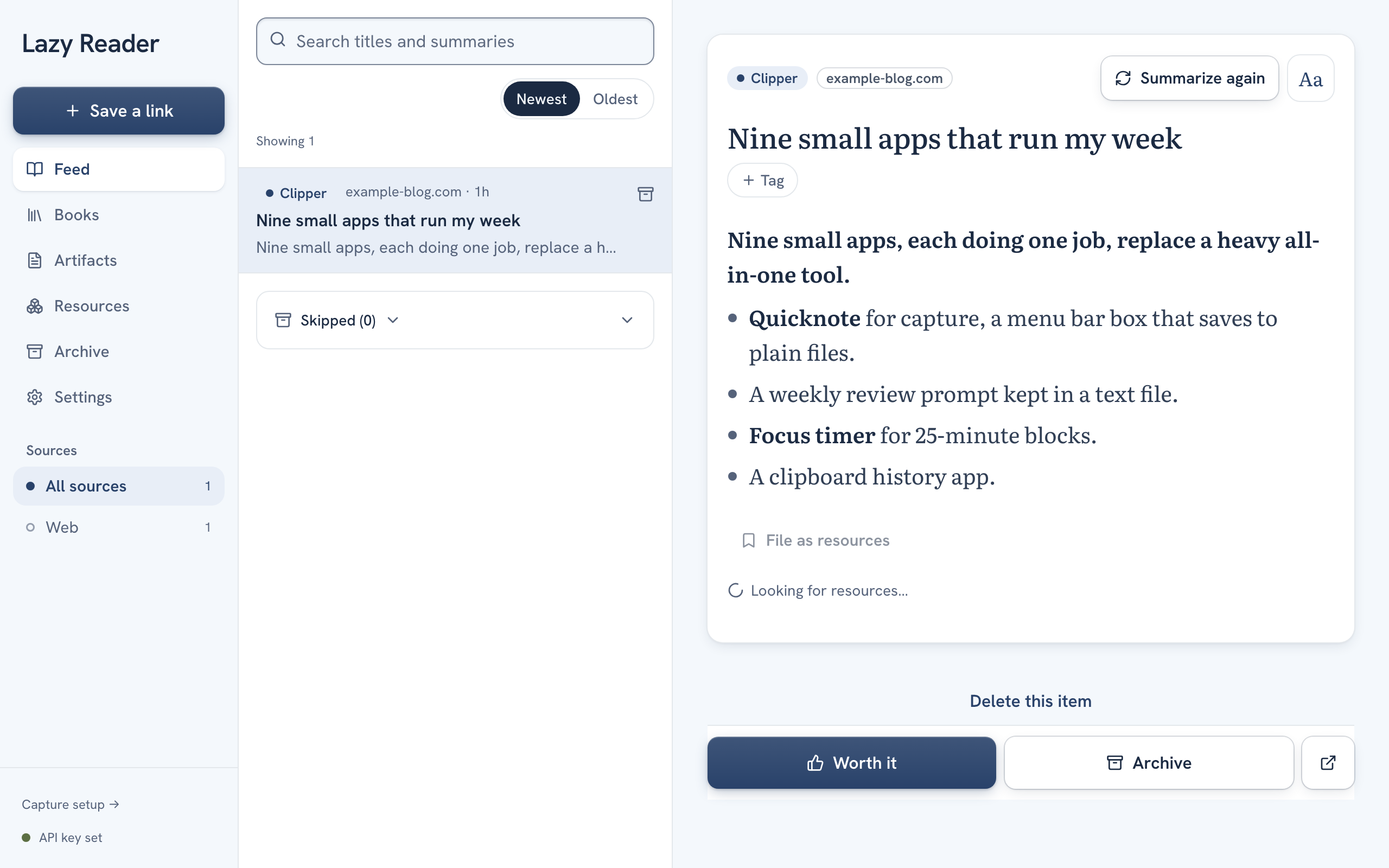
When it is done, one of three things happens:
| What you see | What it means |
|---|---|
| A message like "3 resources found, waiting in Review. Article archived." | The resources wait in Review. The article left your feed and is on the Archive page. Click View in the message to go to Review. |
| "No resources in this one" | The article names nothing worth keeping. It stays in your feed. |
| "Kept as a Bookmark" | The link itself was the thing to keep. It is filed as a Bookmark and skips Review. |
Step 2: open Review
- On a computer, click Resources in the left sidebar. A number next to it counts what is waiting. Then click the Review tab under the page title.
- On a phone, tap the Resources tab at the bottom, then tap the To review card at the top of the list.
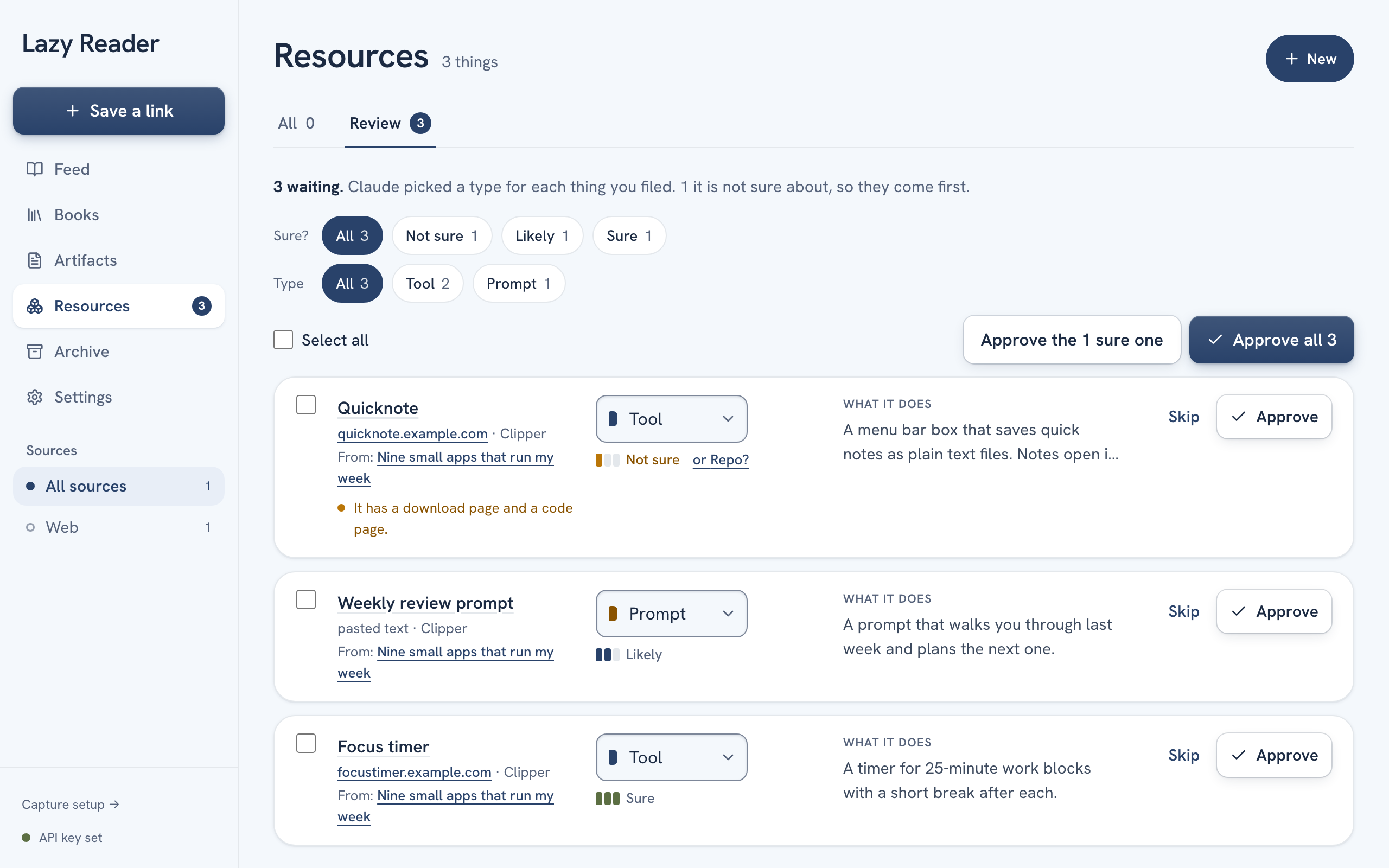
The top line says how many things are waiting, for example "3 waiting. Claude picked a type for each thing you filed."
Step 3: check each row
Each row shows:
- The title and, under it, the link.
- From: and the article it came from.
- The type Claude picked, such as Tool or Prompt.
- How sure Claude is about that type.
- What it does: a short description.
| Label | Meaning |
|---|---|
| Not sure | Claude hesitated. These rows come first. It may offer a second type as a link, like "or Repo?". |
| Likely | Probably right. Worth a glance. |
| Sure | Claude is confident. |
| Your pick | You changed the type yourself. |
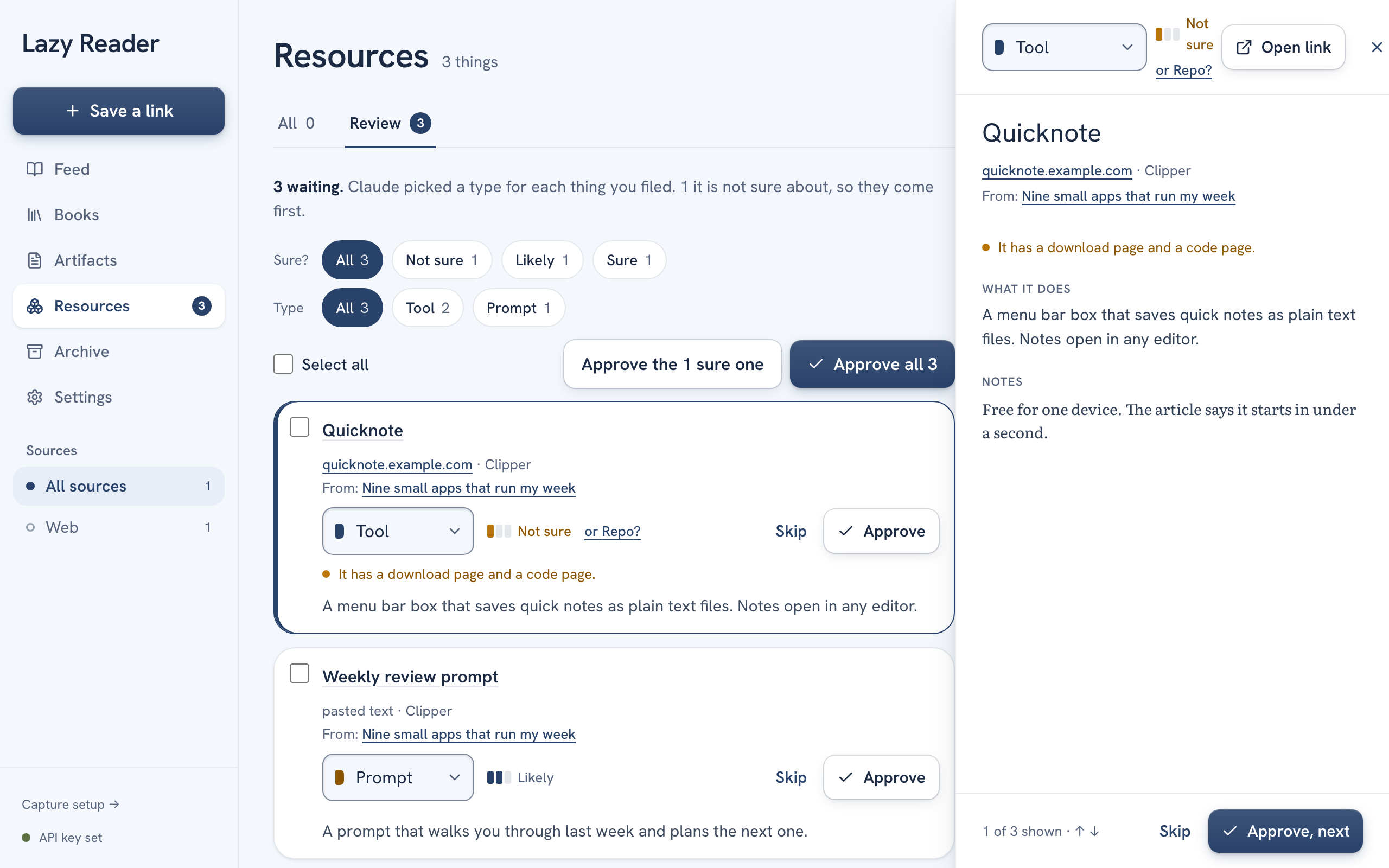
To see a row in full before you decide, click its title. On a computer a panel opens on the right. On a phone the row opens as its own page. It shows the description, the notes and, for prompts and skills, the saved text. Use Open link to visit the page and Copy to copy a prompt or skill. On a computer, the up and down arrow keys move to the previous or next row.
Step 4: fix a wrong type
- On a computer, click the type box in the row and pick another type from the list.
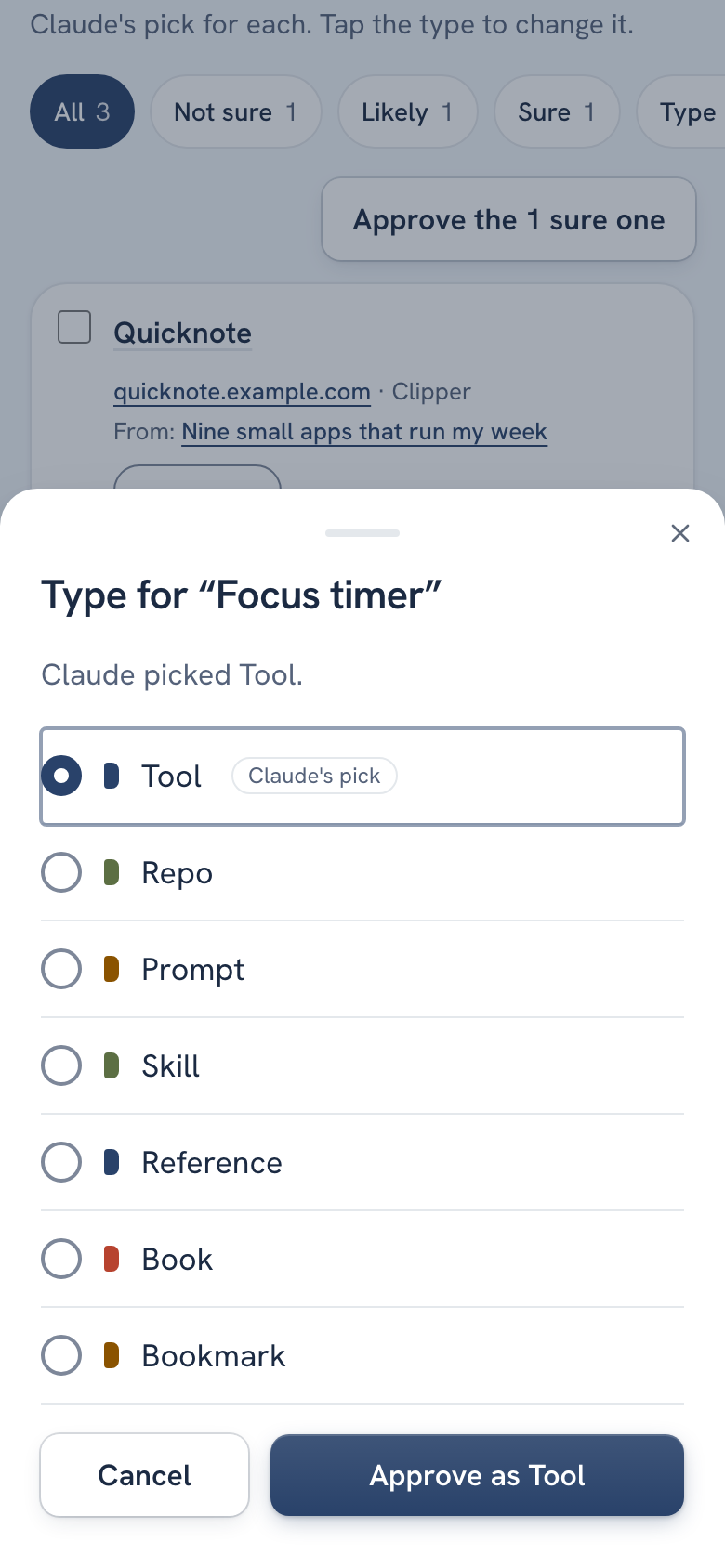
- On a phone, tap the type. A sheet opens called "Type for" and the title. It says what Claude picked and, when it is not sure, why. Pick a type and tap Approve as and the type name. That changes the type and approves the row in one tap.
A row with no type says "Pick a type first". You cannot approve it until you choose one.
Step 5: approve
Pick the way that fits how many rows you have:
- One row: click Approve on the right of the row. In the open panel, click Approve, next to approve and move on.
- Only the confident ones: click Approve the 2 sure ones above the list. The number matches your rows.
- Some rows: tick the box at the left of each row, then click Approve 2 selected.
- Everything: click Approve all with the count, at the top right on a computer or at the bottom of the screen on a phone.
Approved rows slide out. A message says, for example, "2 approved. They are in the list as To try."
Step 6: skip or reprocess what is wrong
- Skip removes a row you do not want. It shows only on rows pulled out of an article. When you skip two or more, Lazy Reader asks first: "Skip 2 resources?"
- Reprocess asks Lazy Reader to read the page again and redo the type and description. Tick the rows, then click Reprocess with the count. The rows say "Reprocessing…", then come back with a fresh type pick and label. Your rows stay in Review while this runs.
WARNING
Skip deletes the row and its saved text. This can't be undone. Rows you added yourself are never skipped.
TIP
A row flagged "No text saved" was filed without the prompt or skill text. Open it and click Reprocess before you approve, or it is filed with only its link or name.
Narrow a long list
Above the rows are two rows of chips. Sure? shows only Not sure, Likely or Sure rows. Type shows only some types. On a phone the types sit behind a Type chip that opens "Show types". Click Clear filters to see everything again.
After Review
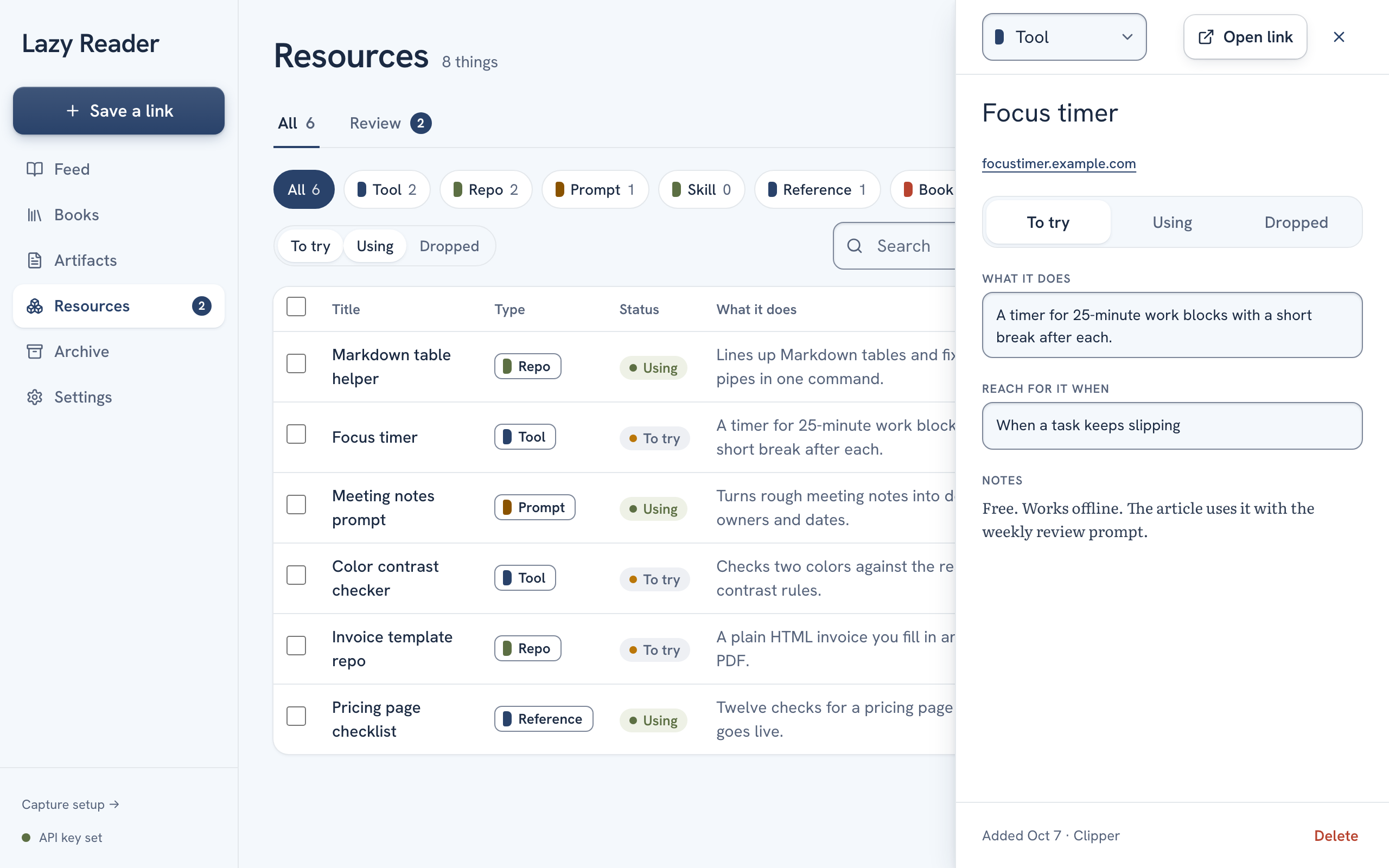
When nothing is left, Review says "All sorted". Your approved resources are under the All tab of Resources, with the status To try. Click one to open it. Set it to Using when you adopt it or Dropped when you give up on it, and fill in Reach for it when as a reminder for later.
Related pages: Resources, Review, Manage your resources, Edit resource types.