
Change model, notifications and look
Most settings you set once and forget. This page covers the three you are most likely to come back to: the AI model that writes your summaries, the notifications you get, and how the app looks. For every other setting, see Every setting.
Open Settings
- On a computer, click Settings in the left sidebar. The groups are listed on the left of the Settings page. Click one to open it on the right.
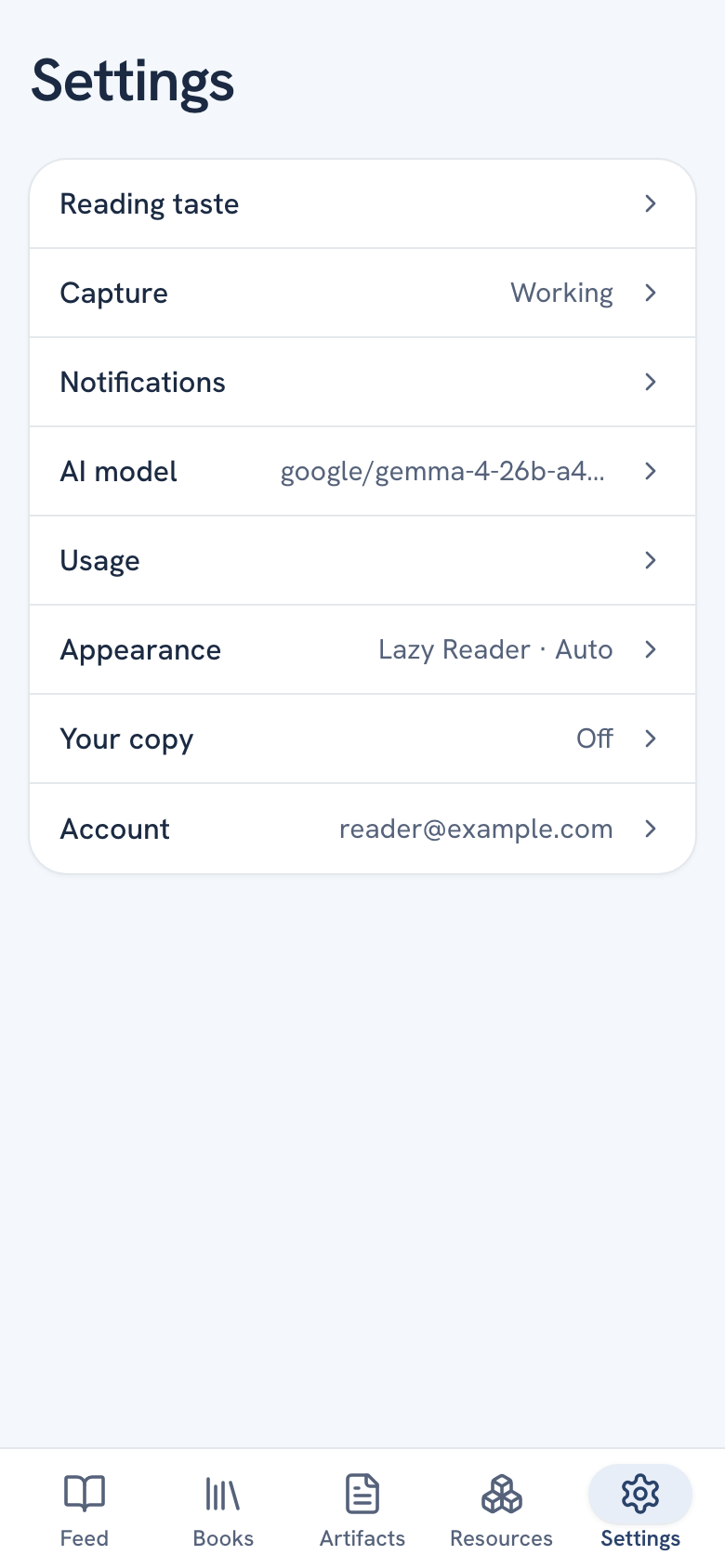
- On a phone, tap the Settings tab at the bottom of the screen. You see a list of groups. Tap one to open it, and tap Settings at the top left to go back.
Each group in the phone list shows a short summary on the right. For example, AI model shows the model in use and Appearance shows something like "Lazy Reader · Auto".
Change the AI model
The model is the AI that reads your saves and writes the summaries. It runs on your own OpenRouter key, so the model you pick sets what each summary costs you.
- Open the AI model group.
- At the top is your OpenRouter key. Leave it as it is unless you need a new key. See Get an OpenRouter key.
- In the Model field, type the id of any OpenRouter model, in the form OpenRouter writes it, such as
anthropic/claude-3.5-haiku. Leave the field empty to use the default,google/gemma-4-26b-a4b-it. - Click or tap outside the field. A small Saved appears under it.
The new model is used for the next summaries. Summaries you already have stay as they are.
Add a backup model
The Backup model is used when the first model fails three times. Leave it empty to have none.
- In Backup model, type another OpenRouter model id.
- Click outside the field. Saved appears under it.
TIP
A smaller, cheaper model is often enough for everyday articles. Before you switch, use Settings, Usage to see what your summaries cost now, then compare a week later.
Change notifications
Lazy Reader can tell you when something is ready. It tells you once, and many things at once come as one alert.
- Open the Notifications group.
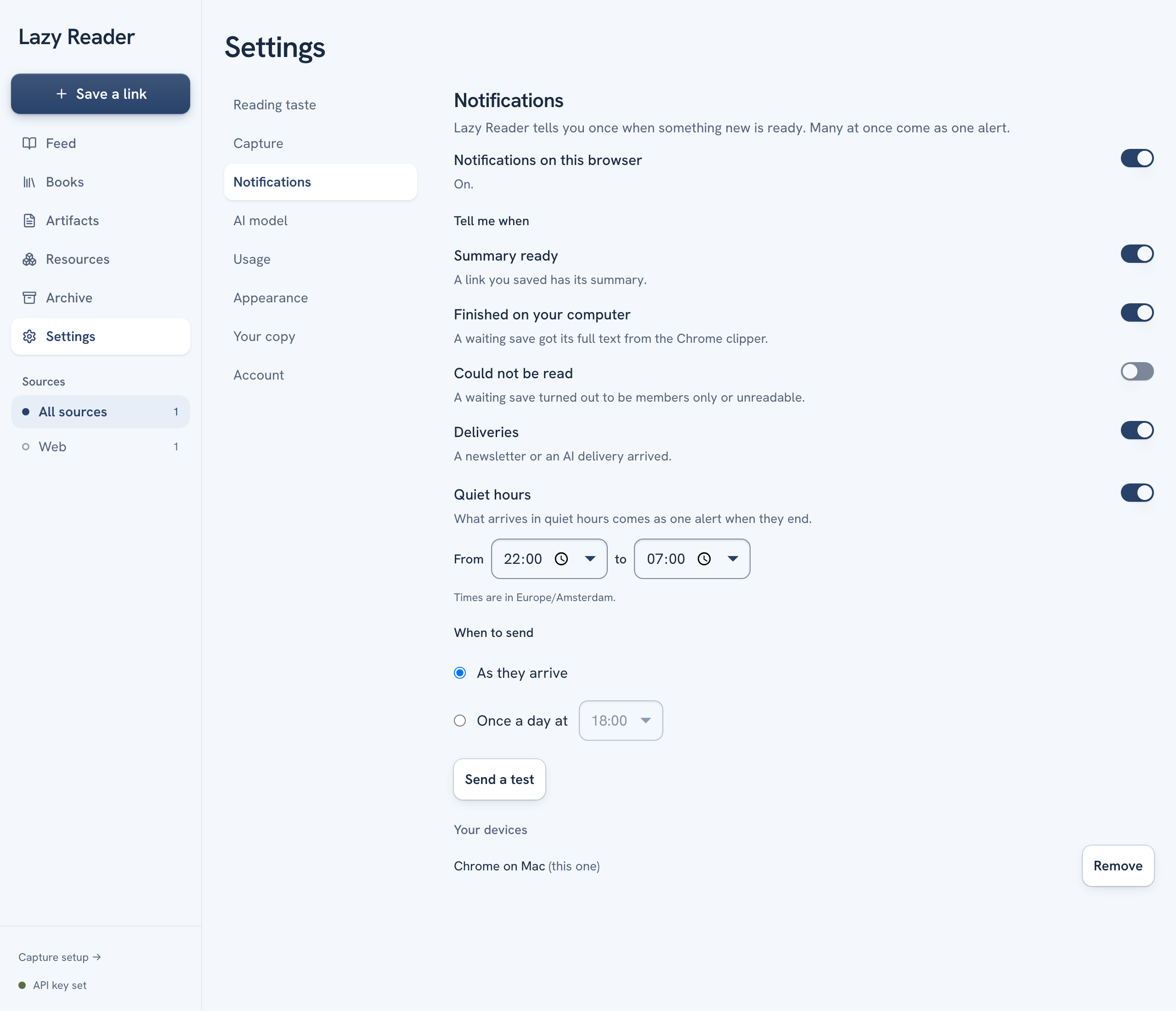
- At the top is the switch for this device: Notifications on this iPhone in the iPhone app, or Notifications on this browser on a computer. Turn it on. Your iPhone or browser asks for permission. Allow it.
- Under Tell me when, turn on what you want to hear about:
| Switch | You get an alert when |
|---|---|
| Summary ready | A link you saved has its summary. |
| Finished on your computer | A waiting save got its full text from the Chrome clipper. |
| Could not be read | A waiting save turned out to be members only or unreadable. |
| Deliveries | A newsletter or an AI delivery arrived. |
- Click Send a test. A message says how many devices it was sent to, and the alert arrives.
Quiet hours and once a day
- Quiet hours: turn the switch on and set From and to, for example 22:00 to 07:00. What arrives in quiet hours comes as one alert when they end.
- When to send: pick As they arrive, or Once a day at and an hour. With once a day you get one alert at that hour.
The times follow your time zone, shown under the hours.
If notifications do not arrive
- The device line says "Blocked". You said no to the permission before. On an iPhone, allow them in iPhone Settings, Lazy Reader, Notifications. In a browser, allow notifications for lazyreader.app in the browser's site settings.
- The line says "This browser cannot show notifications." On an iPhone, notifications come through the Lazy Reader app, not Safari. See Install the iPhone app.
- Under Your devices you see every device with notifications on. Click Remove next to one you no longer use.
Change the look
- Open the Appearance group.
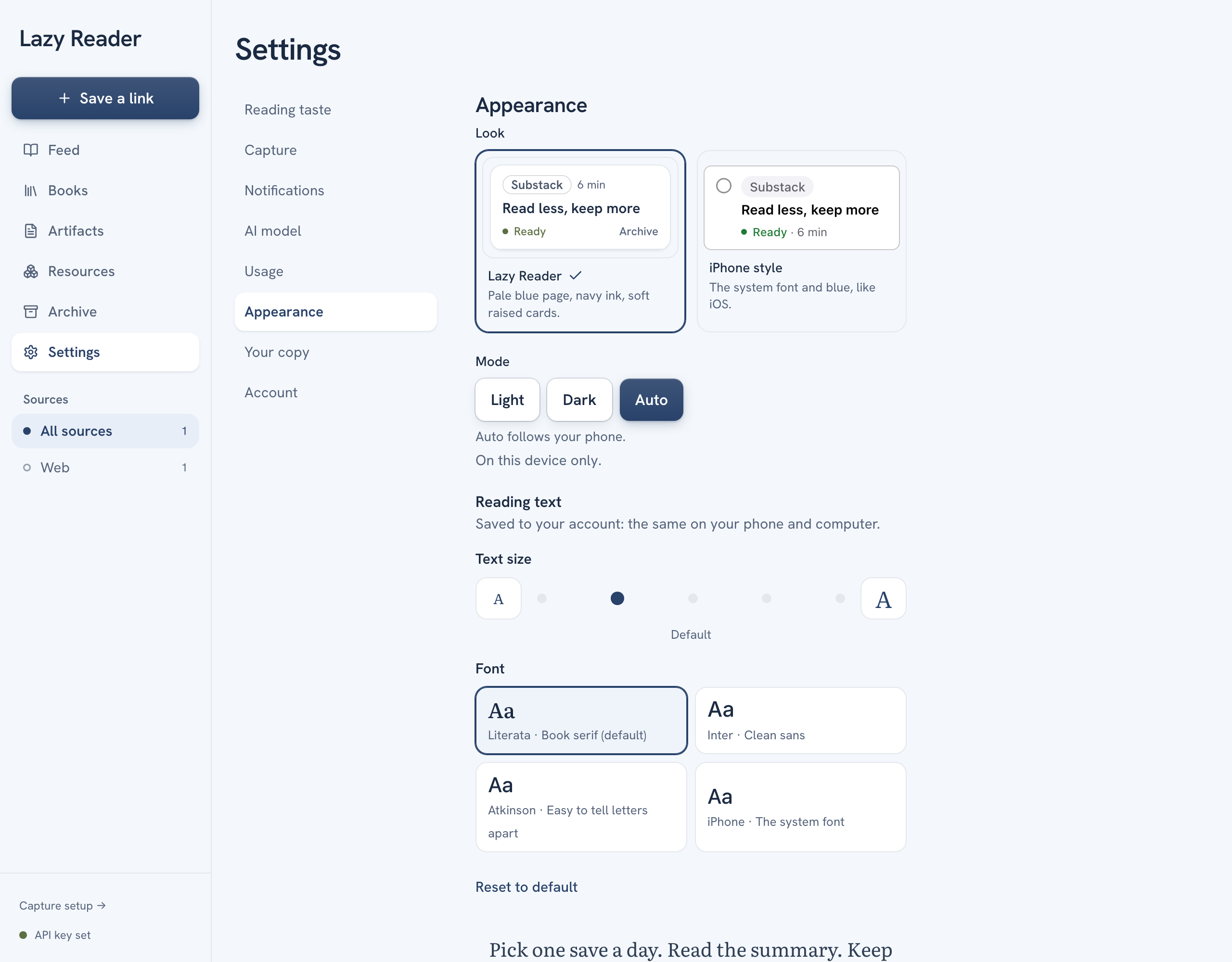
- Under Look, pick one of two:
- Lazy Reader: "Pale blue page, navy ink, soft raised cards."
- iPhone style: "The system font and blue, like iOS."
- Under Mode, pick Light, Dark or Auto. Auto follows the light or dark setting of your phone or computer.
Look and mode change at once. They are kept on this device only, so your phone and your computer can each look different.
Change the reading text
Further down in Appearance is Reading text. It changes the text of summaries and full texts, not the rest of the app.
- Under Text size, use the smaller and bigger buttons to pick a size: Small, Default, Large, Larger or Largest.
- Under Font, pick one: Literata (book serif), Inter (clean sans), Atkinson (easy to tell letters apart) or iPhone (the system font).
- Watch the sample sentence below change as you pick.
Reading text is saved to your account, so it is the same on your phone and your computer. You can also change it while you read, from the reading text button on an item. See Read a summary.
Related pages: Every setting, What it costs and where your data goes, Shape your summaries.