Save from your iPhone
On an iPhone you save to Lazy Reader the same way you send a link to a friend: with the Share button. Lazy Reader shows up in the share sheet, takes the link, and the summary is waiting in your feed a minute later. You never have to open Lazy Reader to save.
This page covers links from Safari and other apps, what the small Lazy Reader window tells you, and how to send a book file.
Before you start
You need the Lazy Reader iPhone app. It is in testing and is installed through Apple's TestFlight app, not the App Store. Install it, open it once and sign in. See Install the iPhone app. Saving from the share sheet does not work without the app.
Step 1: turn Lazy Reader on in the share sheet (first time only)
iPhone hides new apps at the end of the share sheet until you turn them on. You do this once.
- Open any web page in Safari.
- Tap the Share button. In Safari it is the square with an arrow pointing up, at the bottom of the screen.
- The share sheet slides up. It has a row of app icons. Swipe that row to the left until you reach the end, then tap More.
- Find Lazy Reader in the list and turn it on.
- Close the list.
From now on Lazy Reader sits in the row of app icons.
Step 2: share a page from Safari
- Open the article in Safari.
- Tap Share.
- Tap Lazy Reader in the row of app icons.
A small Lazy Reader window opens. It says "Saving to Lazy Reader..." for a moment, then "Saved", and closes by itself after about a second. You are back on the article.
When you share from Safari, Lazy Reader also takes the text of the page as Safari shows it. That helps with pages that build themselves in the browser, such as Notion pages, which a server cannot always read.
Step 3: share from other apps
The same steps work in other apps that can share a link or a piece of text.
- In the app, tap Share (or the three dots, then Share).
- Tap Lazy Reader.
If you share a piece of text, Lazy Reader looks for the first web address in it and saves that. If there is no address, the window says "No link found in what you shared." and closes.
Step 4: find it in your feed
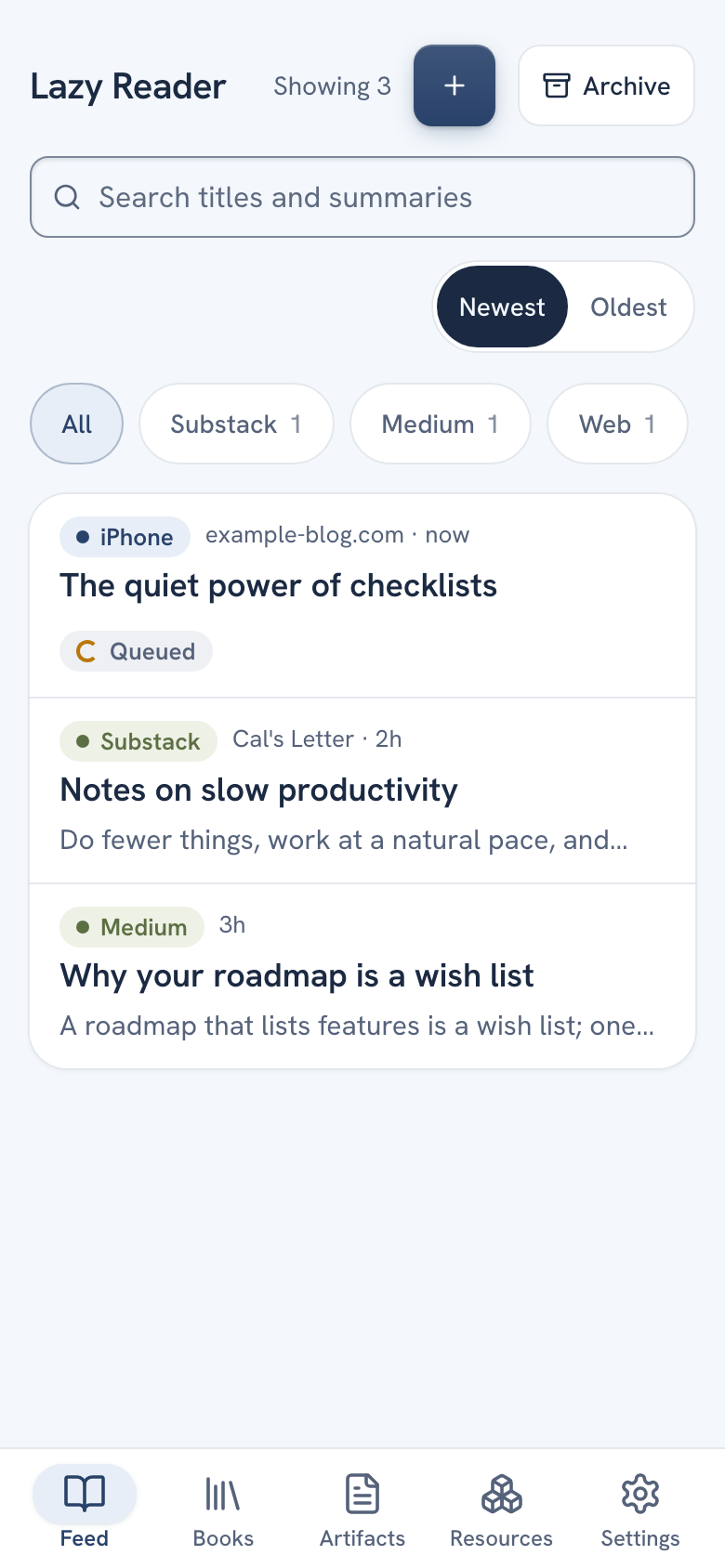
Open Lazy Reader, on your phone or on a computer. The link is at the top of your Feed. Its row starts with a small iPhone label, which tells you it came from the share sheet.
For about a minute the row shows Queued while the summary is written. Then you can tap it and read. See Read a summary.
Save a book file
You can also send an EPUB or PDF book from your iPhone to Lazy Reader, for example from the Files app or a mail attachment.
- Open the file, or press and hold it in Files.
- Tap Share.
- In the row of app icons, tap Lazy Reader.
The Lazy Reader app opens on the Add a book page with your file already picked. Check the title and chapters there and press Summarize this book. The file is read on your phone and is never uploaded. Files over 100 MB are refused with "This file is over 100 MB. Pick a smaller one." The next steps are in Add a book.
What the window can say
| Message | What it means | What to do |
|---|---|---|
| "Saving to Lazy Reader..." | It is sending the link. | Wait a second. |
| "Saved" | The link is in your feed. | Nothing. The window closes by itself. |
| "No link found in what you shared." | What you shared had no web address. | Share the page itself, not a picture or a plain note. |
| "No connection. Try again." | Your phone is offline. | Try again when you have a connection. |
| "Paste your Lazy Reader token, from Settings" | The share sheet does not know your account yet. | See below. |
| "Token rejected. Paste it again from Settings." | Your account's token changed. | See below. |
If the window asks for a token
Normally the Lazy Reader app passes your account to the share sheet when you sign in, so you never see this. If you do:
- Tap outside the window to close it.
- Open the Lazy Reader app and make sure you are signed in.
- Share the page again.
If it still asks, you can paste the token by hand. In Lazy Reader, open Settings, then Capture. Under "Capture token for scripts", tap the copy button next to Capture token. Share the page again, paste the token into the Token field and tap Save and send.
WARNING
Pressing Regenerate token in Settings gives your account a new token. The share sheet and every Chrome clipper using the old one stop working until they get the new one. Opening the iPhone app once fixes the share sheet.
Check that it works
In Lazy Reader, open Settings, then Capture. The first row, Share to Lazy Reader, says Not tested until a first link has arrived. Open the row: under the steps it says "Not tested yet. Share any link to Lazy Reader from your phone, then come back." Share a page, come back and press Check again. The row then says Working, with "Working. Last link arrived" and how long ago.
If Lazy Reader is not in the share sheet at all, see Lazy Reader is not in the share sheet.
Related pages: Ways to save, Save a link in the app, Install the iPhone app.